
Zelis ePayment Center Login: Payer Portals and Biller Access
By George Ruan • October 9, 2026
For Zelis ePayment Center provider login, open your payer’s official EPC, such as MVP ePayment Center for MVP payments, and sign in with that payer-specific account. Other payer destinations and recovery contacts are listed directly below.
As of October 9, 2026, payer-specific EPC accounts are separate from the multi-payer Provider Payments and Payspan destinations in Zelis’s official login directory. Match the portal to the payer and payment product before entering credentials.
Sections
- Direct links: Zelis ePayment Center login and support
- TL;DR: use your own login, and give your biller their own
- Who needs their own Zelis login?
- Before you create access: identify the payer, TIN and administrator
- Account setup: use the payer’s documented enrollment route
- Add your biller through the correct administrator
- Login errors, password resets and a departed administrator
- Switch from a virtual card to no-fee EPC ACH
- Related payer guides
- Frequently Asked Questions
Direct links: Zelis ePayment Center login and support
MVP ePayment Center login — use the account for MVP payments.
Select Health EPC registration and payment instructions — new-account and registration-code route.
Banner Plan Administration EPC and Banner payment instructions
Zelis Provider Payments login — separate network portal; network enrollment and recovery help are on Zelis’s provider page.
Payspan login directory — choose Payspan Payments Portal for that product.
EPC help desk: 855-774-4392 or help@epayment.center. Use this published Select Health EPC contact for its registration and account questions.
Provider Payments help desk: 877-828-8770. Username, password and departed-administrator instructions apply to the network account; ask EPC support about payer-specific recovery.
For MVP, the payer also publishes its EPC destination on its official payments page. Use the payer’s own instructions if a bookmark fails; do not infer that one product’s credentials open another.
The ePayment Center login page looks like this: enter your own User Name and Password, then Login; first-time users choose Sign up Now! on the payer’s page.
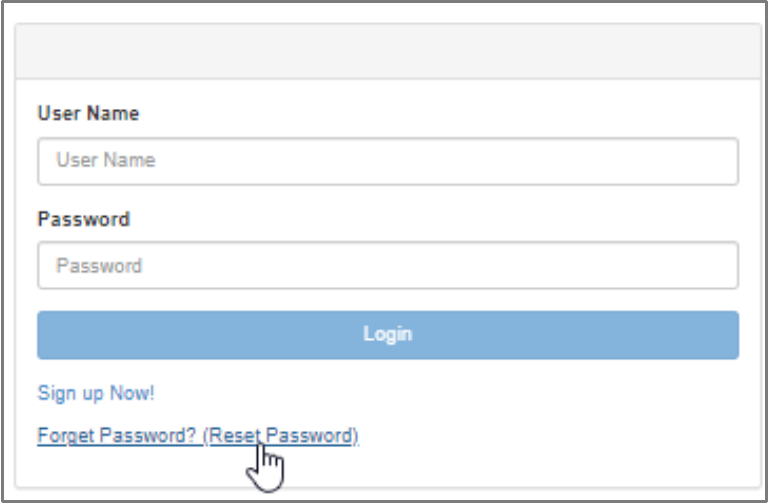
Screenshot source: Zelis ePayment Center Training Guide (v2024.07), page 12.
TL;DR: use your own login, and give your biller their own
Use your own login for the payer’s ePayment Center. Your biller gets their own EPC user, created by the practice administrator through Add a User with the permissions they need. Zelis Provider Payments and Payspan have separate logins; completing payment enrollment is separate from simply signing in.
Zelis EPC user and enrollment guide, pages 5 and 15–16; Zelis login directory.
Who needs their own Zelis login?
An EPC login belongs to one person: use your own name, your own verification method and your own password. The practice administrator creates a separate EPC user for the biller through User Management → Add a User; never share your password. The guide’s user form and verification flow are illustrated below.
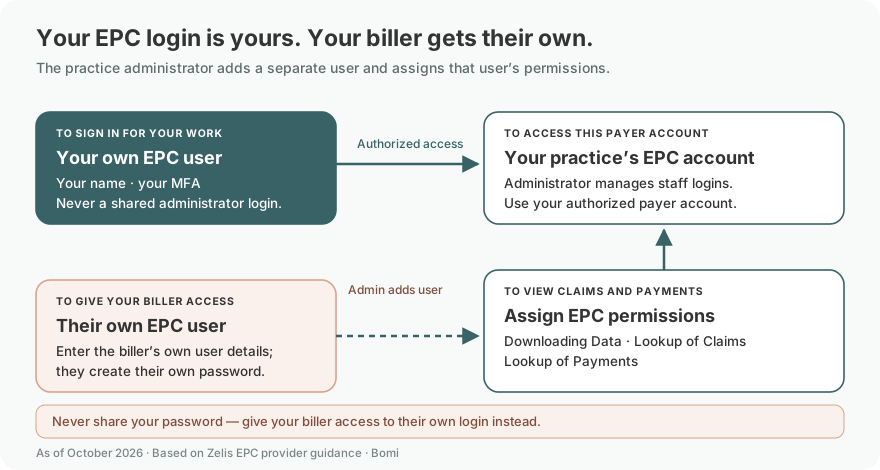
Source: Zelis ePayment Center Training Guide, pages 4 and 15–16
Give the owner, staff member and outside biller their own authorized access rather than sharing a password. For the network Provider Payments portal, Zelis directs users to the office administrator for new accounts and Settings access. Read the administrator instructions. Ask the payer’s EPC help desk about the roles available in that specific portal.
After entering your payer-specific EPC username and password, the Zelis guide instructs you to choose Text or Voice verification, Submit, enter the code and Submit again. Use your own authorized verification method.
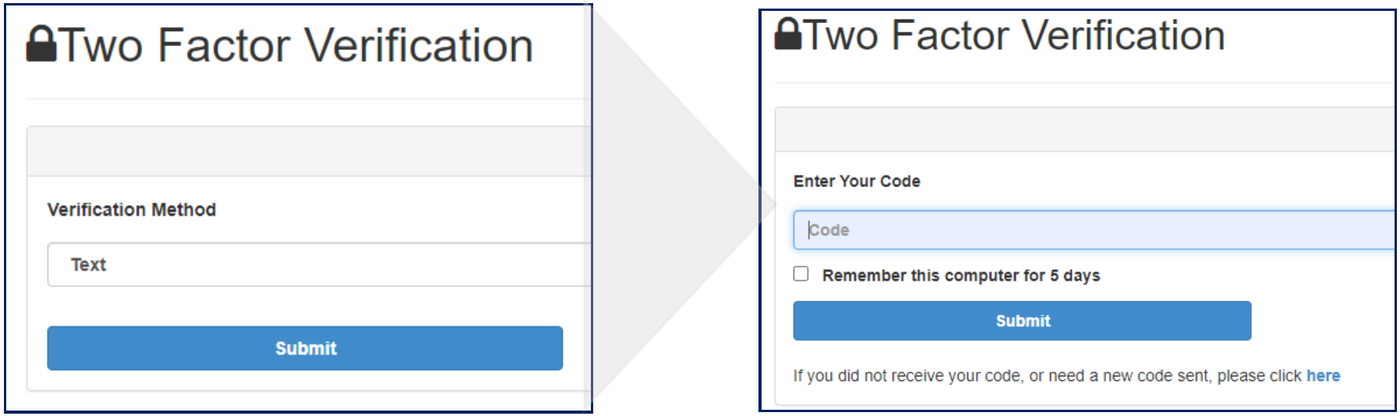
Screenshot source: Zelis ePayment Center Training Guide (v2024.07), page 4.
Before you create access: identify the payer, TIN and administrator
Match the payer on the payment notice to its official payment page. Confirm which practice and tax identification number (TIN) you are enrolling, whether an administrator already controls the account, and whether the intended product is no-fee EPC or a paid network service. Keep the destination and enrollment confirmation together.
Select Health’s EPC enrollment instructions require the TIN/EIN, practice information and bank details. Collect sensitive banking information through the authorized enrollment process; do not put it in a login-help email or a shared task note.
Account setup: use the payer’s documented enrollment route
Open the official payer registration link above. For Select Health, follow the registration-code request and the link you receive to complete account setup.
For that Select Health EPC enrollment, log in, enter the authorized banking information, and review the ACH agreement before submission.
Wait for the documented bank validation and keep the confirmation. Verify the next deposit and remittance before considering the payment setup complete.
These steps follow Select Health’s enrollment guide. Other payers may have different registration and verification instructions. In particular, MVP’s public page and FAQ differ on registration-code wording; follow its current payer guidance and ask support to resolve the discrepancy. MVP payments page; MVP provider FAQ.
After creating your payer-specific account, check the enrollment status on first sign-in. Zelis’s guide shows a pending enrollment dashboard with Continue with my enrollment. This example is set to ERA Download Only and Banking Verification is Not Applicable; it does not show an active EFT enrollment.
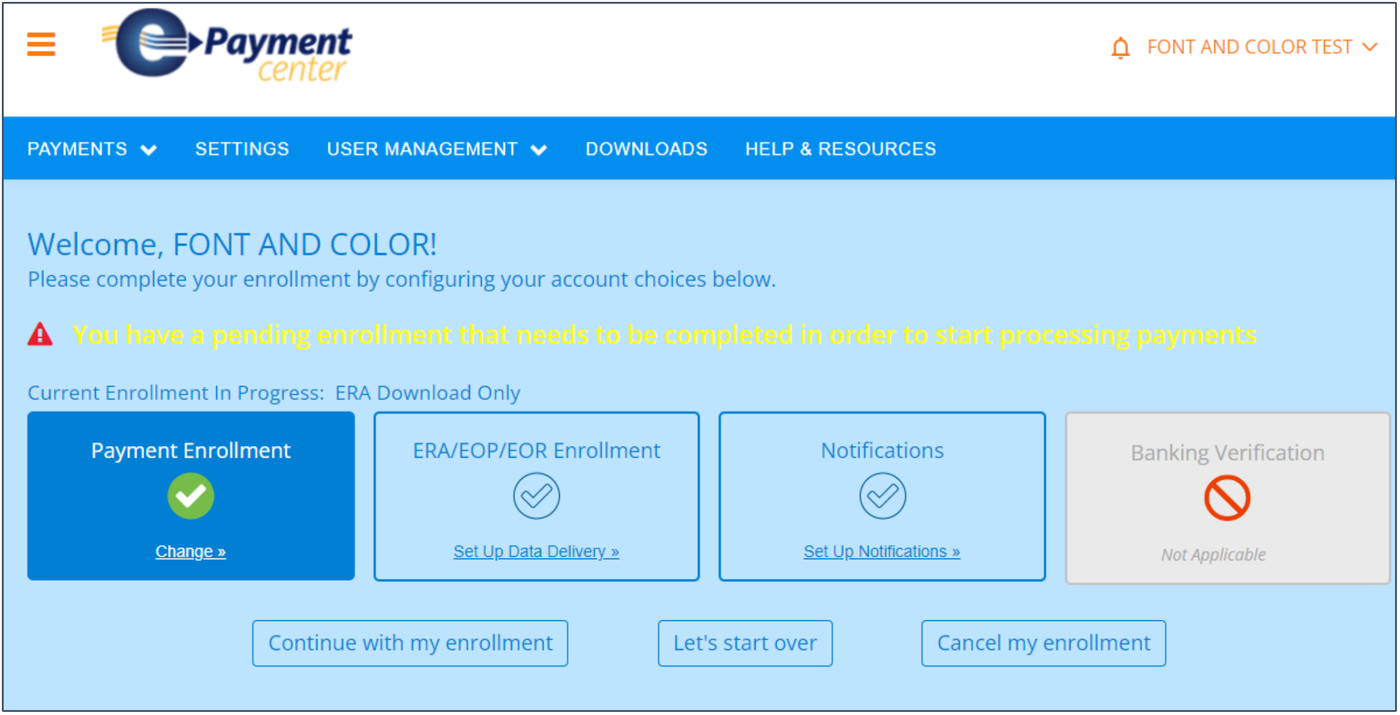
Screenshot source: Zelis ePayment Center Training Guide (v2024.07), page 5.
Add your biller through the correct administrator
For the Zelis network portal, have the office administrator provision the biller’s own user and confirm access to the intended organization. Zelis’s access instructions also address missing Settings access. For an EPC account, confirm delegation with that payer’s portal support rather than applying network-only role instructions.
The biller uses their own EPC login, with their own name and verification method; never share the practice administrator’s password. For EPC administrator access, Zelis’s guide shows User Management, then Add a User. Enter the biller’s own user details, select only the needed permissions and Save. The guide requires at least Downloading Data, Lookup of Claims and Lookup of Payments. Tell the user their username; they receive a password-creation email. Confirm the intended payer account and permissions with its administrator.
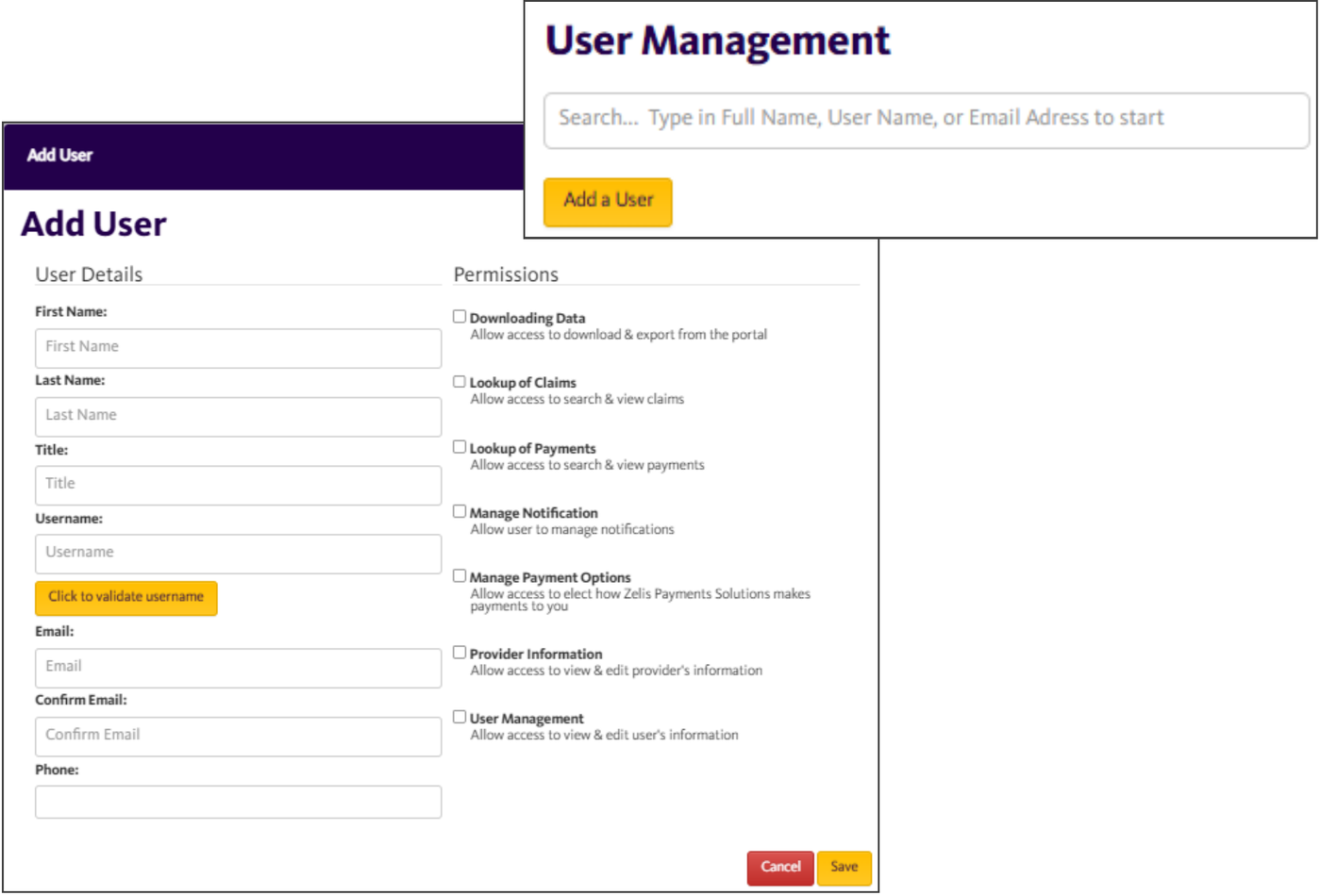
Screenshot source: Zelis ePayment Center Training Guide (v2024.07), page 15.
Login errors, password resets and a departed administrator
Zelis’s network recovery FAQ provides a password-recovery link and directs forgotten usernames or former-administrator issues to Client Services at 877-828-8770. Those are network instructions, not a promise that the same reset works for every EPC account. Use the EPC contact above for a payer-specific account.
If the login opens but the expected payer or payment is missing, check the account and organization before creating another enrollment. Ask support whether the unresolved item is access, payment delivery or remittance delivery, and retain the reference number. A successful sign-in alone does not confirm bank setup.
Switch from a virtual card to no-fee EPC ACH
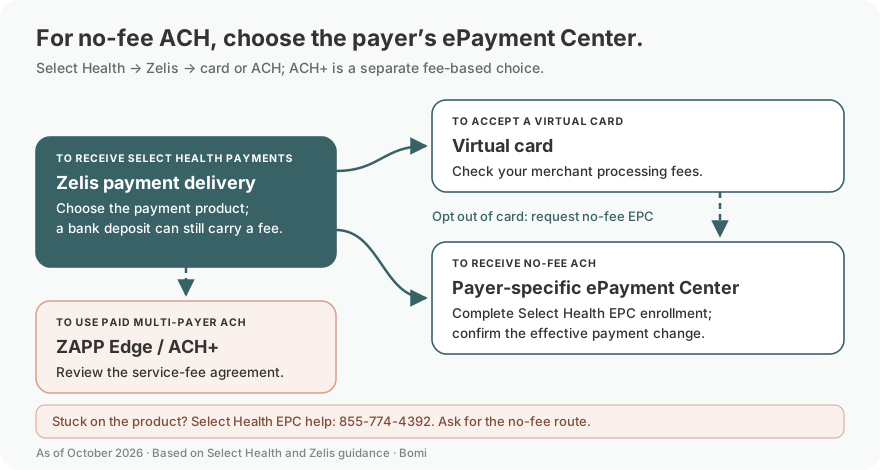
This original map uses Select Health’s documented payment choices; it is not a universal fee schedule for every payer. The opt-out arrow means requesting the no-fee EPC route and completing that payer’s enrollment, rather than assuming a change from card to any ACH product is free. Source: Select Health payment types.
For Select Health, the payment-type notice lists fees for virtual card and ZAPP Edge/ACH+, and no fee for EPC. Request the no-fee EPC ACH option through the listed EPC enrollment/support route, then confirm the effective change. If you already use the network and need to change the payment method, the payment guide directs you to 877-828-8770.
Ask which payer and TIN the change covers, whether future card payments will stop, and how already-issued cards will be handled. Do not assume a switch reverses fees on payments already processed. Reconcile the first deposit under the new setup before closing the task.
Related payer guides
MVP Health Care pays through Zelis: virtual card fees and how to switch to no-fee EFT
Select Health pays through Zelis: virtual card fees and how to switch to no-fee EFT
Devoted Health and Zelis: virtual card fees and the no-fee EFT enrollment route
Banner Health Plans pays through Zelis: virtual card fees and how to switch to no-fee EFT
AvMed pays through Zelis: virtual card fees and how to switch to no-fee EFT
Compare no-fee EPC and fee-based network enrollment before selecting a payment product.
Need help coordinating payer enrollment, remittances and payment follow-up? Talk to Bomi about billing support.
Frequently Asked Questions
What is the Zelis ePayment Center login?
Use the payer-specific EPC destination published by your payer. The direct links above include MVP, Select Health, Devoted, Banner Plan Administration and AvMed. Do not assume a network account opens each EPC.
Is Zelis ePayment Center the same as the Zelis Payments Network?
No. Payer-sponsored EPC and the multi-payer network are different enrollment routes. Select Health’s published options distinguish no-fee EPC ACH from fee-based ZAPP Edge/ACH+.
What is the Zelis ePayment Center phone number?
Select Health and Devoted publish 855-774-4392 for EPC help. Zelis Provider Payments support is 877-828-8770; choose the contact for the product you use.
Where is the Payspan Zelis login?
Zelis’s official login directory has a separate Payspan Payments Portal link. Use that destination for Payspan, rather than assuming an EPC or Provider Payments account is interchangeable.
How do I reset my Zelis password?
For the network portal, use the password-recovery link in Zelis’s provider enrollment FAQ. That FAQ routes forgotten usernames and departed-administrator issues to Client Services. For a payer-specific EPC account, contact its EPC support.
Does changing a Zelis virtual card payment to ACH remove every fee?
No. Select Health distinguishes no-fee EPC ACH from fee-based ACH+. Request the specific no-fee route and confirm the payer and TIN covered by the change.
Want Bomi to handle insurance billing?
Bomi helps therapy practices with benefit checks, claims, denials, balances, CAQH, attestations, and revenue management.
Book a call
About Bomi
Founded by George Ruan, Dax Earl, and Andrey Goder, Bomi helps independent therapists and group practices with insurance billing, credentialing, and payer follow-up. Bomi grew out of Dax’s experience helping his mother with her therapy practice, with a clear purpose: reduce the administrative burden of insurance while keeping practice owners in control.
Meet our founders