
Harvard Pilgrim Payspan EFT: Product Exceptions
By George Ruan • October 9, 2026
Last updated: October 9, 2026.
Sections
- Check whether your product belongs in Payspan
- Register or add Harvard Pilgrim to your existing account
- Do not depend on enrollment to restore old history
- Prepare a useful payment-support question
- Existing Payspan account: add the payer and choose EFT
- Payspan login, code help and fee questions
- Frequently Asked Questions
Check whether your product belongs in Payspan
As of October 9, 2026, Point32Health lists Payspan EFT for Harvard Pilgrim Commercial, Medicare Enhance and Medicare Supplement. Its guide excludes Student Resources and Passport Connect. Access America is excluded for providers outside Massachusetts, Maine, New Hampshire, Rhode Island and Vermont. Verify the product before requesting a code. Point32Health Payspan EFT flyer
Register or add Harvard Pilgrim to your existing account
Use Point32Health’s EFT instructions to request a registration code and PIN, then follow the official Payspan registration flow. The guide names Harvard Pilgrim Health Care as the payer choice for its covered products. Existing Payspan users should check the Harvard Pilgrim relationship rather than create a duplicate login. Point32Health EFT instructions
Do not depend on enrollment to restore old history
Point32Health says Harvard Pilgrim payment history in Payspan starts with registration. Before changing your reconciliation process, retain the prior reports the practice needs and note the date the new history begins. A successful login alone does not prove a particular old payment will appear. Point32Health EFT instructions
Prepare a useful payment-support question
Write down the exact product, payee, enrollment date and whether the issue is a missing bank deposit, missing remittance or unavailable older history. Ask support to verify that particular relationship. For an out-of-scope product, ask Harvard Pilgrim for its current payment enrollment instructions instead of selecting a similar name in Payspan. Keep full bank details in the vendor’s secure enrollment process.
Existing Payspan account: add the payer and choose EFT
The screens below illustrate the Payspan interface in a January 2026 guide published by Arizona Complete Health. Your payer’s current product and payment instructions determine which options are available; this example does not replace them. Read the public Payspan tip sheet.
For an existing account adding a payer relationship, open Your Payments and Manage Reg. Codes, then Add New Reg. Code. Enter the registration code, PIN and TIN supplied for that payer relationship. Tip sheet, pages 1–2.
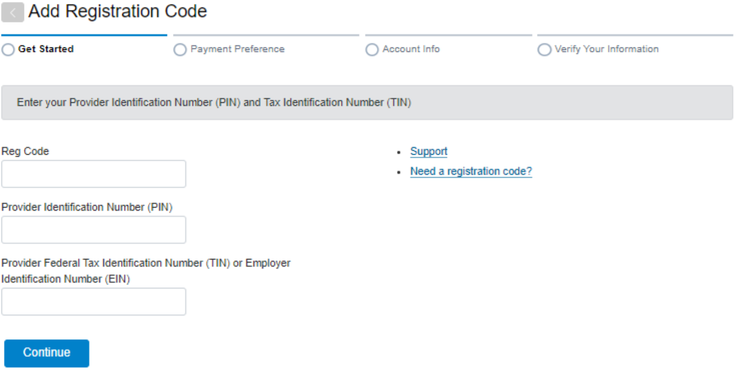
Screenshot source: Zelis (Payspan) Tip Sheet 26-005 (January 13, 2026), page 2.
When Payment Preference offers ACH for the payer, select that option and review its terms before continuing. The guide says payment options depend on payer preferences; ask for the payer’s basic no-cost EFT route rather than assuming every ACH-branded offer has the same terms. Payment Preference example, page 2.
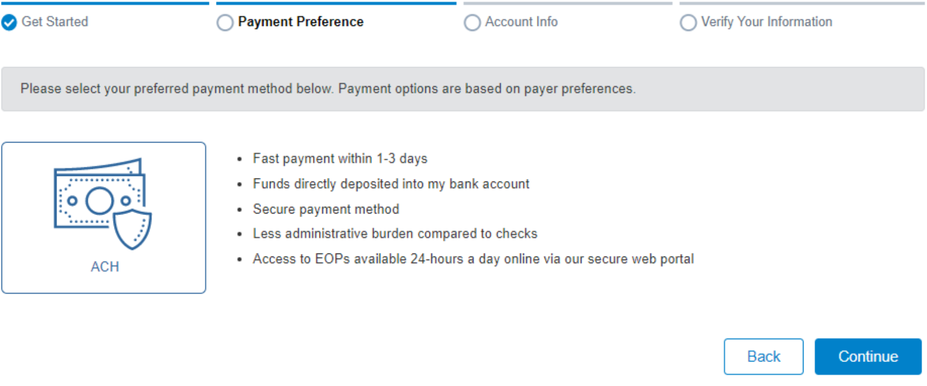
Screenshot source: Zelis (Payspan) Tip Sheet 26-005 (January 13, 2026), page 2.
Payspan login, code help and fee questions
Payspan login, forgotten username/password and registration-code help
Payspan payment options, card fees and what to do about prior charges
Frequently Asked Questions
Does Harvard Pilgrim use Payspan for every product?
No. The official EFT guide lists product and geography exceptions. Check the current Point32Health guide before enrolling.
Want Bomi to handle insurance billing?
Bomi helps therapy practices with benefit checks, claims, denials, balances, CAQH, attestations, and revenue management.
Book a call
About Bomi
Founded by George Ruan, Dax Earl, and Andrey Goder, Bomi helps independent therapists and group practices with insurance billing, credentialing, and payer follow-up. Bomi grew out of Dax’s experience helping his mother with her therapy practice, with a clear purpose: reduce the administrative burden of insurance while keeping practice owners in control.
Meet our founders