
Capital Health Plan Payspan EFT Registration
By George Ruan • October 9, 2026
Last updated: October 9, 2026.
Sections
Use Capital Health Plan’s payment instructions
As of October 9, 2026, Capital Health Plan’s Network Support Services page directs providers to Payspan for EFT. It offers an online registration-code request and says payments continue by mail until EFT enrollment. Begin with that official payer page so the code request is tied to Capital Health Plan. Capital Health Plan network support
Request the code, then enroll in EFT
Follow the online Payspan code-request link from the payer page. After receiving the code, use the vendor’s official registration process. Capital Health Plan lists Payspan provider support at 877-331-7154, option 1, for enrollment help. Do not confuse requesting a code with completing bank enrollment. Capital Health Plan network support
Keep payment authority with the practice
The practice should choose the receiving account and handle any vendor verification directly. Give the biller the payer name and enrollment status through an approved secure channel. Avoid forwarding bank-account details, passwords or verification codes in a general billing email. Record who will receive payment notifications and who can authorize a future bank change.
Troubleshoot the actual missing item
For a missing mailed payment, ask about the payer’s issued payment and mailing record. For a missing EFT, ask whether enrollment is active for the correct payee. For a missing remittance, identify the payment reference and date. Keep those questions separate from claim adjudication so an enrollment issue does not turn into an unnecessary duplicate claim submission.
Existing Payspan account: add the payer and choose EFT
The screens below illustrate the Payspan interface in a January 2026 guide published by Arizona Complete Health. Your payer’s current product and payment instructions determine which options are available; this example does not replace them. Read the public Payspan tip sheet.
For an existing account adding a payer relationship, open Your Payments and Manage Reg. Codes, then Add New Reg. Code. Enter the registration code, PIN and TIN supplied for that payer relationship. Tip sheet, pages 1–2.
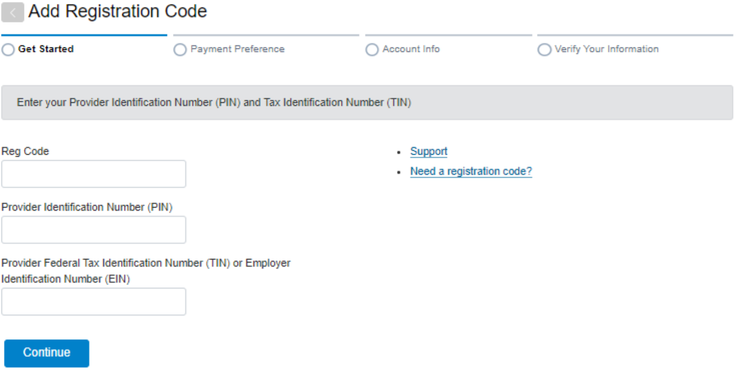
Screenshot source: Zelis (Payspan) Tip Sheet 26-005 (January 13, 2026), page 2.
When Payment Preference offers ACH for the payer, select that option and review its terms before continuing. The guide says payment options depend on payer preferences; ask for the payer’s basic no-cost EFT route rather than assuming every ACH-branded offer has the same terms. Payment Preference example, page 2.
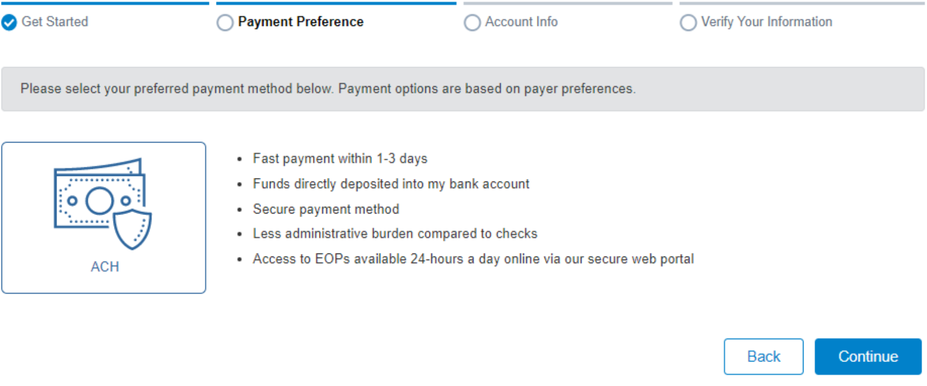
Screenshot source: Zelis (Payspan) Tip Sheet 26-005 (January 13, 2026), page 2.
Payspan login, code help and fee questions
Payspan login, forgotten username/password and registration-code help
Payspan payment options, card fees and what to do about prior charges
Frequently Asked Questions
Does requesting a Capital Health Plan code finish EFT setup?
No. Capital Health Plan describes requesting a code and then enrolling in EFT. Follow the official enrollment instructions through completion.
Want Bomi to handle insurance billing?
Bomi helps therapy practices with benefit checks, claims, denials, balances, CAQH, attestations, and revenue management.
Book a call
About Bomi
Founded by George Ruan, Dax Earl, and Andrey Goder, Bomi helps independent therapists and group practices with insurance billing, credentialing, and payer follow-up. Bomi grew out of Dax’s experience helping his mother with her therapy practice, with a clear purpose: reduce the administrative burden of insurance while keeping practice owners in control.
Meet our founders