
Give Bomi Access to Optum Payer Enrollment Services
By George Ruan • August 18, 2026
For Optum Pay payment-data access, use the separate billing-service guide
Last updated: September 17, 2026.
Use Payer Enrollment Services—not Optum Pay. Optum Pay’s Billing Service Information is a different workflow; it is not the workflow for adding a PES user. Sign in through the official PES site and add Bomi under the exact provider and TIN that owns the enrollment.
Optum Payer Enrollment Services (PES) is where practices enroll and manage electronic funds transfer (EFT) and electronic remittance advice (ERA) with participating payers. PES access is scoped to a provider record and tax identification number (TIN), so choosing the right record matters before you add anyone.
Sections
What This Access Does
Grants access to one provider/TIN record. A user added under one TIN does not automatically receive access to another TIN, even when both records belong to the same practitioner or practice.
Keeps sign-ins separate. Bomi uses its own One Healthcare ID. The practice does not share its username, password, authenticator code, or backup codes.
Exposes sensitive enrollment information. PES includes payer, financial-institution, EFT, and ERA enrollment details. Confirm the exact TIN and intended user before creating access.
Does not change an enrollment by itself. Adding Bomi lets the authorized user review or work within that record. It does not repair a missing payer enrollment, incorrect NPI, or rejected EFT or ERA request.
Before You Start
Use a PES administrator. The person completing these steps must already be able to open the practice’s provider record in PES and manage its users.
Identify the exact provider record. Confirm the legal business name, TIN, NPI, and practice location. Similar-looking rows can represent separate tax entities with different enrollments and users.
Ask Bomi for the user details. PES requires a first name, last name, title, email address, and phone number. Use the exact details Bomi provides rather than a shared practice identity.
Review the current users. Do not create a duplicate if the same Bomi email address already appears on that provider record.
Add Bomi to the Correct PES Record
Open Optum Payer Enrollment Services. Go to the official Payer Enrollment Services site and select Sign In.
Sign in with the practice administrator’s One Healthcare ID. Complete multifactor authentication yourself. Do not send Bomi the practice password or authentication code.
Open Tax Identification Numbers. The Admin Console lists the provider/TIN records available to the signed-in administrator.
Select the exact provider and TIN. Match the legal business name, TIN, NPI, and location to the enrollment Bomi needs. Stop and ask Bomi if more than one row could be correct.
Open the Users tab. User management is inside the selected provider panel. It is not an account-wide setting in the Admin Console.
Review the existing user list. Confirm that the requested Bomi email address is not already present, including in Pending or Inactive status.
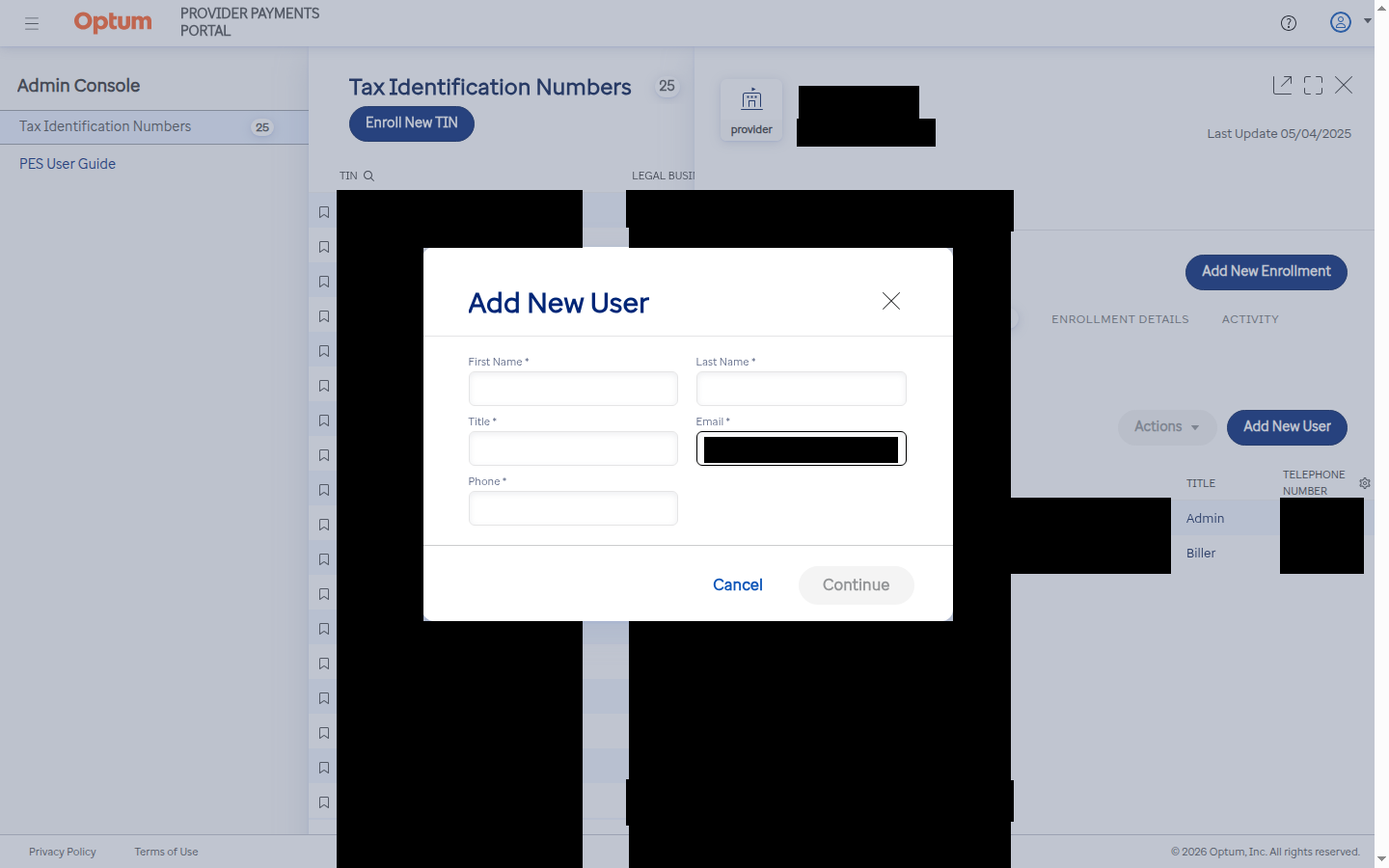
Select Add New User. Enter the first name, last name, title, email address, and phone number supplied by Bomi.
Review everything before selecting Continue. In the PES workflow verified by Bomi in September 2026, Continue created the user immediately; it did not open a separate review or role-selection step. Treat Continue as the final submission button.
Verify the new user. Return to the Users tab and confirm the exact email address appears. A newly created user may show Pending until the user completes Optum’s activation process.
PES Screens to Look For
1. Start from the Payer Enrollment Services site. The PES landing page explicitly identifies the service as the place to manage EFT and ERA enrollments. Select Sign In if the practice is already enrolled.

2. Open Users for the exact provider and TIN. After selecting the correct provider record, the Users tab shows the current users and the Add New User button. Practice identifiers and existing user details are redacted below.
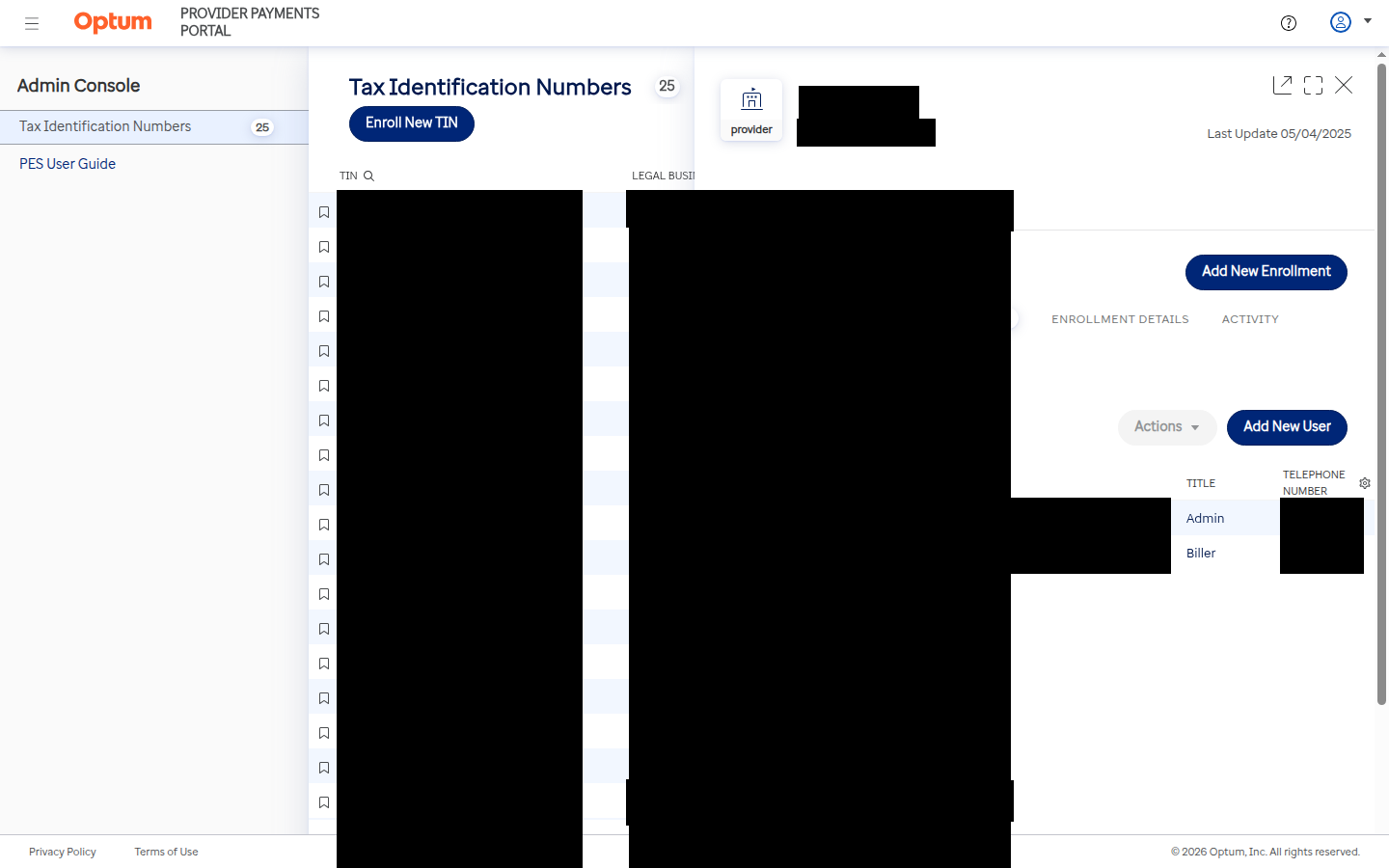
3. Complete the Add New User form. PES requires the user’s first name, last name, title, email address, and phone number. Continue becomes available after the required fields are complete and should be treated as the final create action.
4. Read back the resulting user row. After Continue, verify the exact email address, role, and status in the Users tab. In the tested workflow, the new user appeared immediately as Admin with Pending status. Practice and unrelated user details are redacted below.
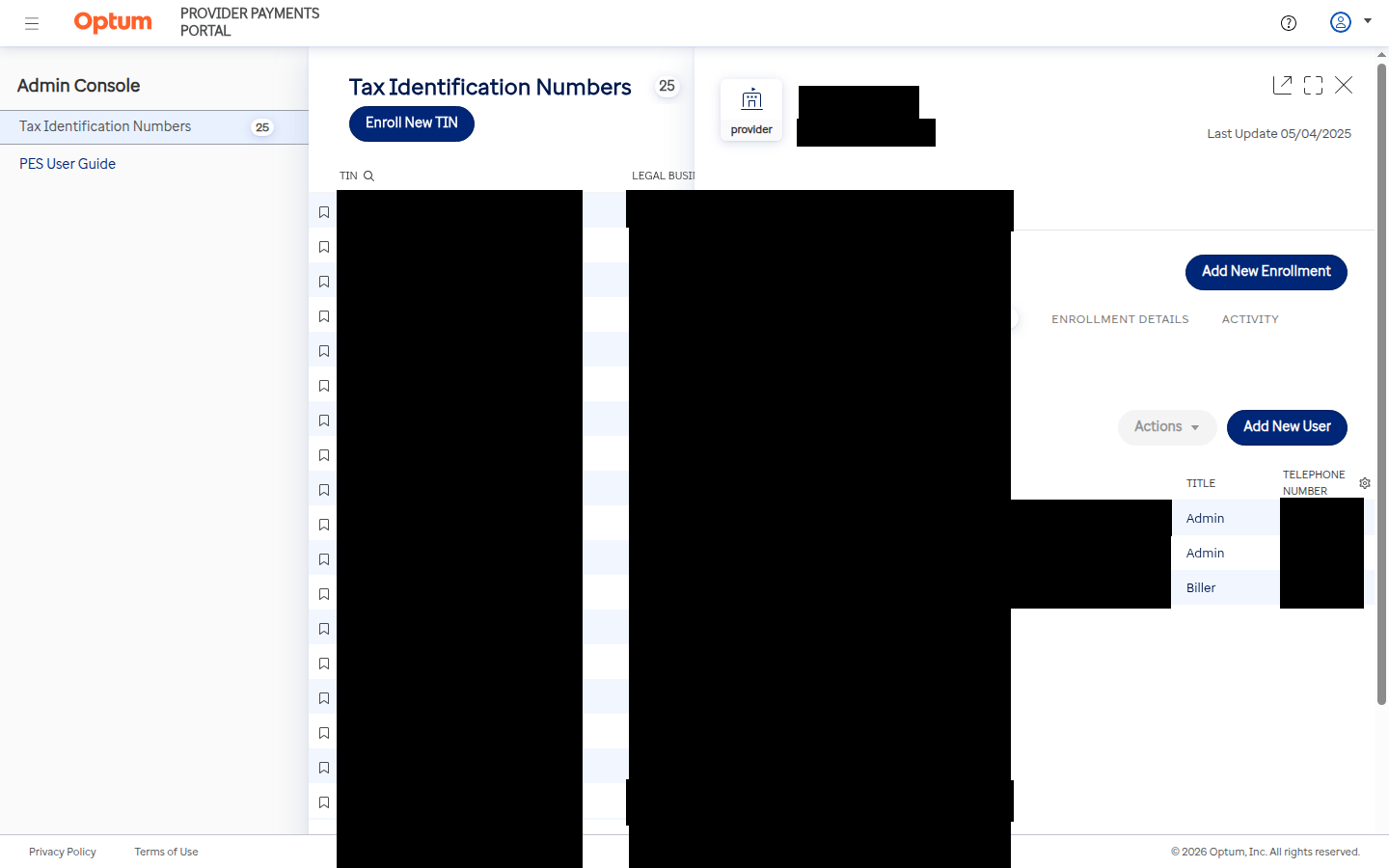
PES may create Admin access without a role-selection screen. The workflow Bomi verified created the new user with an Admin role and Pending status. Because Admin access reaches sensitive EFT and ERA enrollment data, confirm the person, email address, and provider/TIN before selecting Continue. Portal behavior can change; if a role selector appears, use the access level Bomi requested.
After the User Is Added
Pending is not the same as active. Confirm that Bomi received the activation instructions and that the user eventually changes to Active. The PES screen may not state whether an email was sent.
Verify the payer enrollment separately. For an ERA issue, confirm the payer and ERA enrollment under the correct TIN and NPI. For an EFT issue, also confirm the approved financial-institution record.
Do not add the user to every TIN by default. Repeat the workflow only for another provider/TIN that Bomi specifically needs to service.
Remove access when it is no longer needed. Review the Users tab periodically and remove obsolete or duplicate access through the practice’s normal authorization process.
If the Portal Does Not Match These Steps
Optum can change labels and navigation. Stop before submitting if you cannot verify the provider/TIN, the requested Bomi identity, or the access level. Contact Optum Payer Enrollment Services support at 800-956-5190, Monday through Friday, 8 a.m. to 5 p.m. Central Time.
Identity and Security Checklist
Use the official PES site, not Optum Pay Billing Service Information.
Select the exact legal business name and TIN before opening Users.
Use the person-specific Bomi email address and contact details Bomi supplied.
Never share the practice password, authenticator code, or backup codes.
Treat Continue as the final create action after all required fields are complete.
Verify the resulting email, role, and status in the Users tab.
Frequently Asked Questions
Should I use Optum Pay Billing Service Information?
Not for this task. Billing Service Information is an Optum Pay workflow. To give Bomi access to Payer Enrollment Services, sign in to PES, select the exact provider/TIN record, and add the Bomi user from that record’s Users tab.
Should I give Bomi my Optum username and password?
No. Bomi uses its own One Healthcare ID. Never share the practice administrator’s password, authenticator code, or backup codes.
Which TIN should I select?
Select the provider/TIN record that owns the payer enrollment Bomi needs to service. Match the legal business name, TIN, NPI, and location. Ask Bomi before proceeding if more than one record could be correct.
Does Continue open another review screen?
Do not assume it does. In the PES workflow Bomi verified in September 2026, Continue immediately created the user. Review all fields and the selected provider/TIN before clicking it.
Why does the new user show Pending?
Pending means the user has been created but is not yet active. Ask Bomi to complete any activation steps from Optum, then confirm that the Users tab shows the expected status.
Does adding Bomi fix an EFT or ERA enrollment?
No. User access and payer enrollment are separate. The correct TIN, NPI, payer, and requested EFT or ERA service must still be present and approved in PES.
Sources and Related Reading
Want Bomi to handle insurance billing?
Bomi helps therapy practices with benefit checks, claims, denials, balances, CAQH, attestations, and revenue management.
Book a call
About Bomi
Founded by George Ruan, Dax Earl, and Andrey Goder, Bomi helps independent therapists and group practices with insurance billing, credentialing, and payer follow-up. Bomi grew out of Dax’s experience helping his mother with her therapy practice, with a clear purpose: reduce the administrative burden of insurance while keeping practice owners in control.
Meet our founders