
Palmetto eServices Login: Register and Add Your Biller
By George Ruan • October 10, 2026
For Palmetto eServices provider login, open the official eServices sign-in page and sign in with your own assigned user account.
Last checked: October 10, 2026; manual revision September 2026.
Sections
- Direct links: eServices login, account setup and help
- TL;DR: use your own login, and give your biller their own
- Who needs their own eServices login
- Before you create access
- How do I register for Palmetto eServices?
- Add your biller as a Provider User
- Link your own existing eServices accounts
- eServices login errors and forgotten user IDs
- Related Medicare portal guides
- Frequently Asked Questions
Direct links: eServices login, account setup and help
User-ID recovery: manual section 3.4, then your provider administrator
eServices support: JJ 877-567-7271; JM 855-696-0705; Railroad 888-355-9165
EDI enrollment: select your Palmetto line of business, then EDI → Enrollment
The eServices login page has Username and Password fields and a Create Your Account option for initial registration.
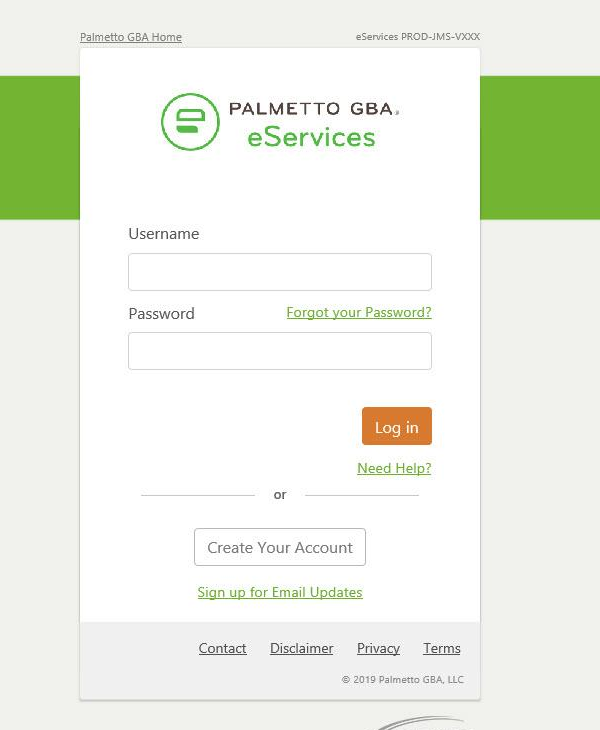
Screenshot source: Palmetto GBA eServices User Manual, Rev. September 2026, page 13, Figure 1.
TL;DR: use your own login, and give your biller their own
Use your own eServices user ID and MFA. Your Provider Administrator creates a separate Provider User account for your biller and selects the functions they need. Initial eServices registration requires the provider’s EDI enrollment agreement; Medicare enrollment is separate. eServices manual, sections 2 and 10
Who needs their own eServices login
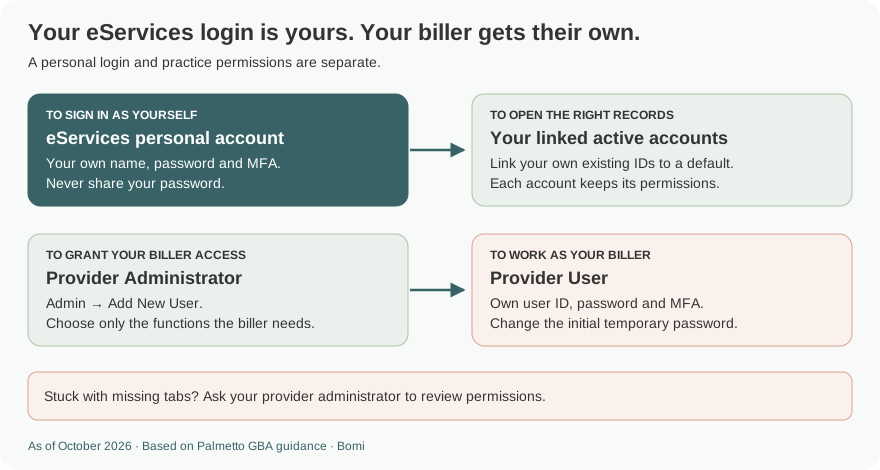
Every person needs their own name and user account; shared or generic accounts are not permitted. Never share your password. A person with separately assigned active eServices accounts can use Account Linking to connect their own accounts to a default login, then choose the provider from the dropdown. Linking does not grant new provider permissions. Manual, pages 108–112 and 120–123
Before you create access
Confirm an EDI Enrollment Agreement is on file for the PTAN/NPI. Initial registration establishes the provider administrator; it is not the route for every employee or billing service to register another administrator. The manual directs billing services to obtain access through the provider. Manual, pages 14 and 18–19
How do I register for Palmetto eServices?
For initial provider-administrator setup, open eServices and choose Create Your Account.
Enter your own contact details and the provider’s PTAN, NPI, tax ID and line of business. Supply the recent Medicare payment amount or access code requested by the registration screen.
Complete the email verification, password and security requirements, then set up your own MFA as prompted.
Keep your user ID and verify that the expected provider account is available before creating additional users.
Current registration and MFA instructions, pages 18–31
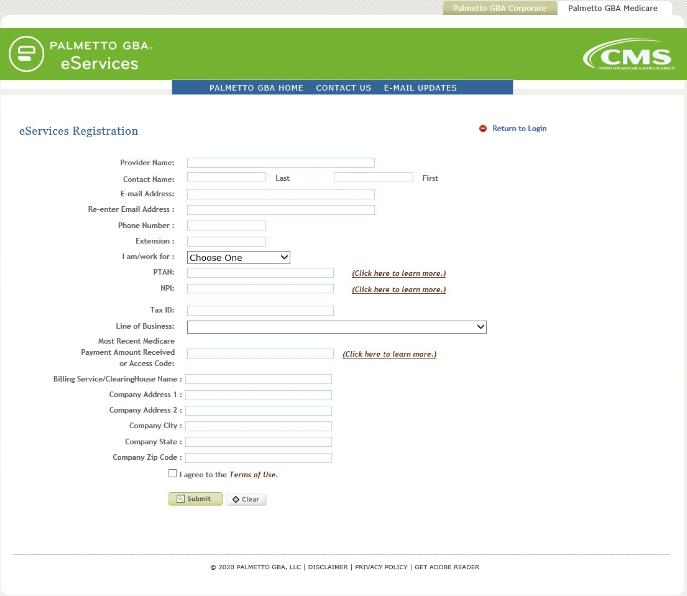
Screenshot source: Palmetto GBA eServices User Manual, Rev. September 2026, page 19, Figure 2.
Add your biller as a Provider User
The Provider Administrator opens Admin → Add New User, enters the biller’s own first and last name, sets a temporary password, and selects the necessary functions. Give the new user their assigned user ID and initial credentials securely. The biller then uses their own account and follows the password, security and MFA prompts. Do not give them the administrator’s password. Manual, pages 108–112
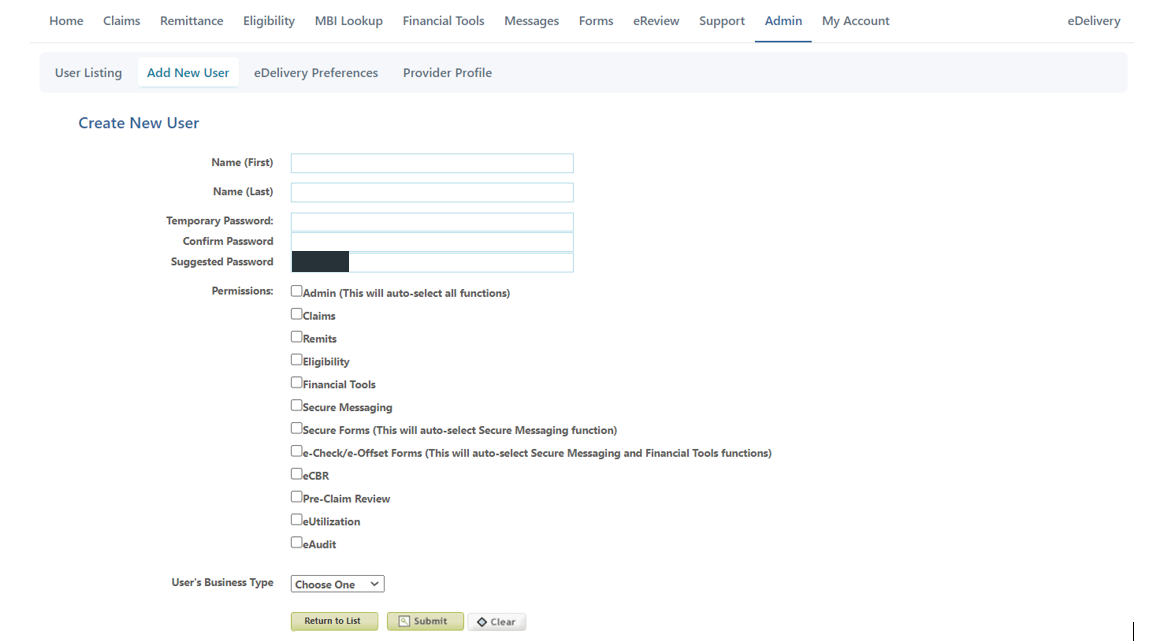
Screenshot source: Palmetto GBA eServices User Manual, Rev. September 2026, page 109, Figure 84; suggested password covered.
Selecting Admin grants all functions and authority to manage users. Grant the biller the specific functions they need rather than assuming all billers must become administrators. Manual, pages 109–110
Link your own existing eServices accounts
If you already have separate active accounts, sign in with the account you want as the default. Open My Account → Account Linking, enter your other own active account’s credentials, and select Link Account. Linked non-default IDs no longer work as separate logins; use the default login and provider dropdown. Each linked account keeps its own permissions. Manual, pages 120–123
eServices login errors and forgotten user IDs
Use Forgot your Password? for password recovery. If you cannot locate your user ID, follow manual section 3.4 and ask your provider administrator to review your user account. For missing functions or a locked user account, the provider administrator can review permissions and available unlock options; contact the appropriate Palmetto support team if needed. Manual, pages 23–27 and 112 Support contacts
Related Medicare portal guides
Frequently Asked Questions
How do I log in to Palmetto eServices?
Use the official onlineproviderservices.com/ecx_improvev2/ sign-in page and your own eServices user ID, password and MFA.
How do I add my biller to eServices?
The Provider Administrator uses Admin → Add New User, creates the biller’s own Provider User account and selects the required functions. The biller uses the new account, not your password.
Can one eServices login access multiple provider accounts?
Account Linking can connect your own separately assigned active eServices accounts to a default login. It preserves the permissions already assigned to each account.
Is eServices registration Medicare enrollment?
No. Initial portal registration requires the provider’s EDI agreement and matching identifiers. Medicare provider enrollment is handled separately, usually through PECOS.
Want Bomi to handle insurance billing?
Bomi helps therapy practices with benefit checks, claims, denials, balances, CAQH, attestations, and revenue management.
Book a call
About Bomi
Founded by George Ruan, Dax Earl, and Andrey Goder, Bomi helps independent therapists and group practices with insurance billing, credentialing, and payer follow-up. Bomi grew out of Dax’s experience helping his mother with her therapy practice, with a clear purpose: reduce the administrative burden of insurance while keeping practice owners in control.
Meet our founders