
Noridian Medicare Portal Login: NMP Registration and Biller Access
By George Ruan • October 10, 2026
For Noridian Medicare Portal (NMP) provider login, open the official NMP sign-in page and use your own registered username and password.
Last checked: October 10, 2026.
Sections
- Direct links: NMP login, registration and recovery
- TL;DR: use your own login, and give your biller their own
- Who needs their own NMP login
- Before you create access
- How do I register for Noridian Medicare Portal?
- Add your biller: approve functions and provider combinations
- NMP login errors and missing access
- Related Medicare portal guides
- Frequently Asked Questions
Direct links: NMP login, registration and recovery
The NMP public sign-in page places the login and password-recovery links above Start Registration.
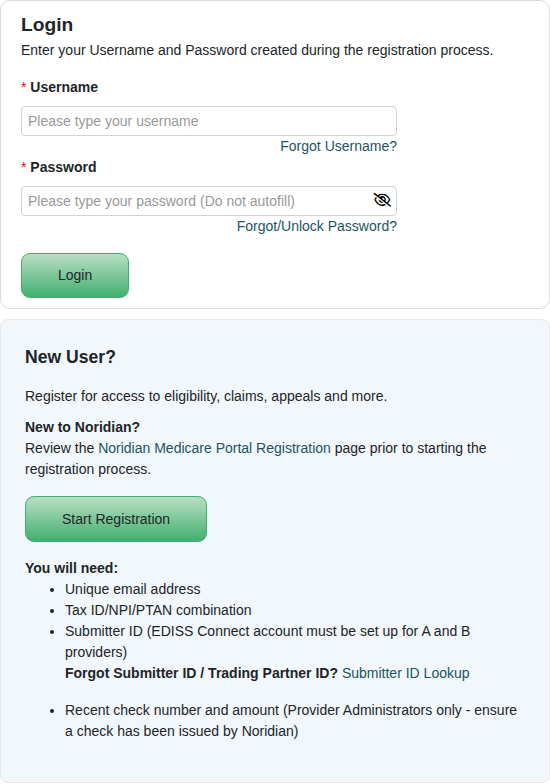
Screenshot source: Screenshot of the public Noridian Medicare Portal sign-in page, captured October 10, 2026.
TL;DR: use your own login, and give your biller their own
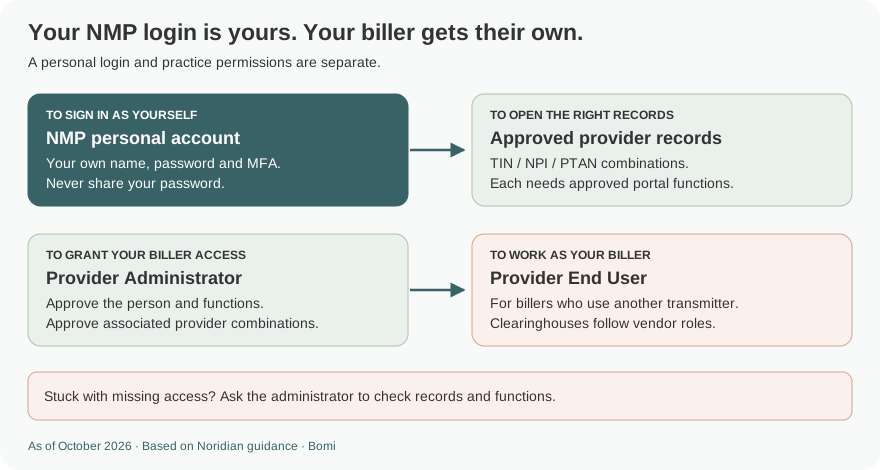
Each person needs their own NMP account. A third-party biller who sends claims to another transmitter registers as a Provider End User, and your Provider Administrator approves access; clearinghouses have separate Vendor Administrator and Vendor End User roles. NMP access is separate from Medicare enrollment and EDI setup. Noridian roles
Who needs their own NMP login
Use your own name, unique email, password and MFA. Never share your password. One account can request additional provider/supplier combinations; each combination and requested function needs the appropriate approval. A Provider Administrator manages users and does not automatically have eligibility or claim-inquiry functions. Registration guide Roles Account management
Before you create access
Register the Provider Administrator first. Gather the billing/group TIN, NPI and PTAN combination and required submitter/trading-partner identifiers. Noridian’s Part A/B registration route requires EDISS Connect setup. Administrator verification also uses a recent Noridian check number and amount; follow the current guide for the payment details accepted for your program. Current registration guide
The small-organization Dual Role combines administration and inquiry access only when Noridian approves it. It is not available for vendors; choosing Administrator alone does not grant the functions an End User needs. Role rules
How do I register for Noridian Medicare Portal?
Choose Start Registration and review the agreements and NPI/PTAN verification prompts.
Enter your own personal information and email. Complete the account confirmation, security-question and MFA instructions.
Choose the correct Provider/Supplier or Vendor route and role. Do not select Vendor simply because you are an outside biller; apply Noridian’s role definitions.
Add the required billing/group provider combination and identifiers. Submit the request and wait for the relevant approval.
Registration screens and current steps The current registration guide describes the account fields and approvals.
The manual’s public portal illustration shows the Start Registration entry point. Follow the current registration guide for the account fields and approvals.
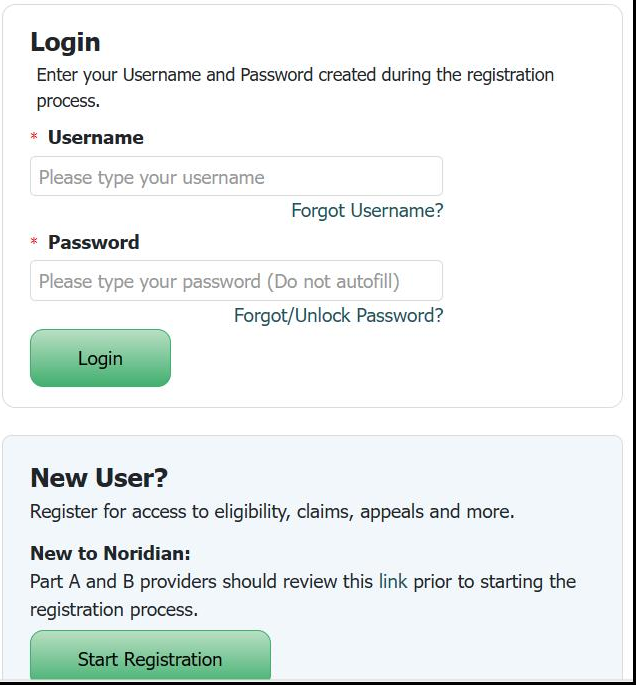
Screenshot source: Noridian and CGS Self Service Tools and Resources, updated March 27, 2025, page 9; public registration entry screen.
Add your biller: approve functions and provider combinations
Have the biller register with their own account and request the correct role and provider records. For third-party billers who do not directly transmit files to Noridian, the exact role is Provider End User. The provider’s office retains its Provider Administrator. Clearinghouse staff follow the separately documented vendor roles. Noridian roles
The Provider Administrator opens Pending Requests and selects Approve Registration for the correct user.
Select the functions the user needs and choose Update Functions. Review each function request and choose Update Approvals.
Expand Associated Combinations and select the intended NPI/PTAN combination.
Choose Approve Request only after reviewing the person, functions and records.
Noridian New User Registrations guide
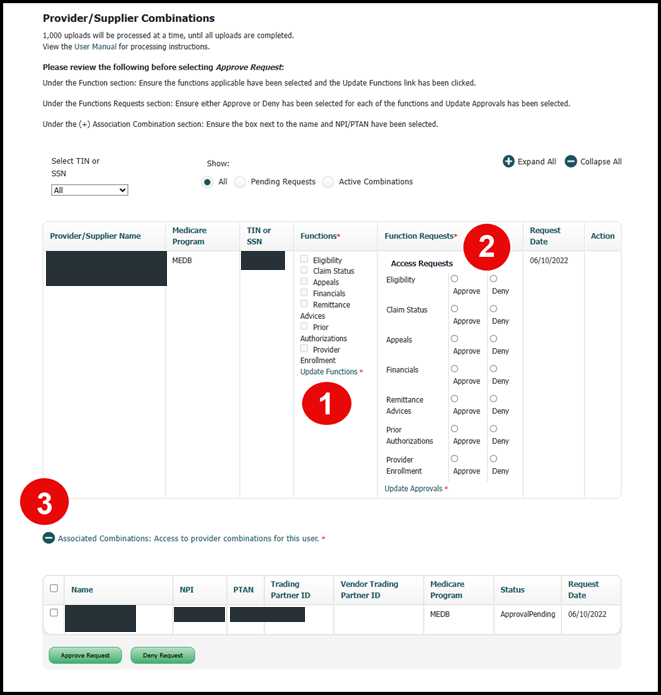
Screenshot source: Noridian Medicare Portal User Guide, New User Registrations, current HTML guide accessed October 10, 2026; sample identifiers covered.
NMP login errors and missing access
For credentials, use Forgot Username or Forgot/Unlock Password on the official login. If you can sign in but cannot open a provider or function, ask the administrator to review both the provider/supplier combination and function approvals. For help beyond those checks, contact User Security for your jurisdiction. NMP account management Contact and support
Related Medicare portal guides
Frequently Asked Questions
How do I log in to the Noridian Medicare Portal?
Open www.noridianmedicareportal.com/web/nmp and enter the username and password for your own NMP account.
Which NMP role should a third-party biller choose?
Noridian says third-party billers who do not directly transmit files to Noridian should register as Provider End Users. Clearinghouse access uses the separate vendor roles.
Why can my NMP administrator not check eligibility?
Provider Administrator manages access but does not include inquiry functions. An eligible small organization can request Noridian’s approved Dual Role; vendors cannot use that option.
Can I add another provider to my NMP login?
Request the additional provider/supplier combination through Manage Account. The required administrator must approve the provider combination and functions.
Want Bomi to handle insurance billing?
Bomi helps therapy practices with benefit checks, claims, denials, balances, CAQH, attestations, and revenue management.
Book a call
About Bomi
Founded by George Ruan, Dax Earl, and Andrey Goder, Bomi helps independent therapists and group practices with insurance billing, credentialing, and payer follow-up. Bomi grew out of Dax’s experience helping his mother with her therapy practice, with a clear purpose: reduce the administrative burden of insurance while keeping practice owners in control.
Meet our founders