
PAVE Login: Give Your Medi-Cal Biller Access
By George Ruan • July 4, 2026
For PAVE provider login, open the official Medi-Cal PAVE portal and sign in with your own personal User Profile.
Account and role guidance checked October 10, 2026. PAVE handles enrollment applications and provider-record changes; creating a login does not mean your enrollment is approved. DHCS explains what PAVE does.
Sections
- Direct links: PAVE login, registration and help
- TL;DR: use your own login, and give your biller their own
- Who needs their own PAVE login
- Before you invite your biller
- Create your personal PAVE User Profile
- Add your biller in User Administration
- Who can sign the Medi-Cal application?
- Login errors or an invitation that does not work
- Related Medi-Cal guides
- Frequently Asked Questions
- Sources
Direct links: PAVE login, registration and help
Sign in: PAVE portal — use the email and password for your personal User Profile.
Create an account: PAVE Sign Up — register the actual person who will use the account.
Forgot your password or username? PAVE technical help — call 866-252-1949 for log-in assistance; avoid creating another account just to regain access.
Help desk: DHCS PAVE support — 866-252-1949, Monday–Friday, 8am–6pm Pacific, excluding state holidays.
Enrollment questions: Provider Enrollment Division — 916-323-1945; the enrollment application is separate from personal-account registration.
The PAVE profile guide shows this sign-in screen with Sign Up for first-time users; its earlier layout asks for the username before the password.
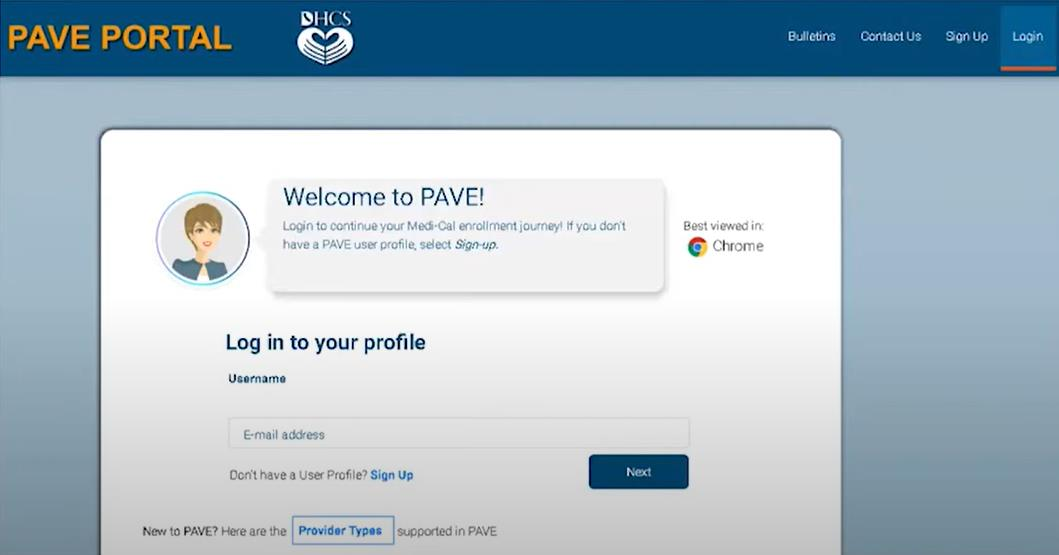
Screenshot source: Medi-Cal PAVE Profile Creation Instructional Guide, page 1; undated guide announced June 5, 2024.
TL;DR: use your own login, and give your biller their own
Use your own PAVE User Profile. Your biller creates their own login, and the practice Administrator grants a role such as Supervisor for limited assistance; broader privileges need a separate decision. A login and an invitation are separate from Medi-Cal enrollment approval.
Who needs their own PAVE login
You, your office administrator and your biller each use a personal User Profile. Keep your password and account-verification messages private. The provider’s PAVE profile, also called a Business Profile in some guides, holds the enrollment work; it is shared through assigned access, not a shared password. One person can access multiple PAVE profiles, each with its own permissions. See DHCS’s profile and role training, pages 12 and 19–22.
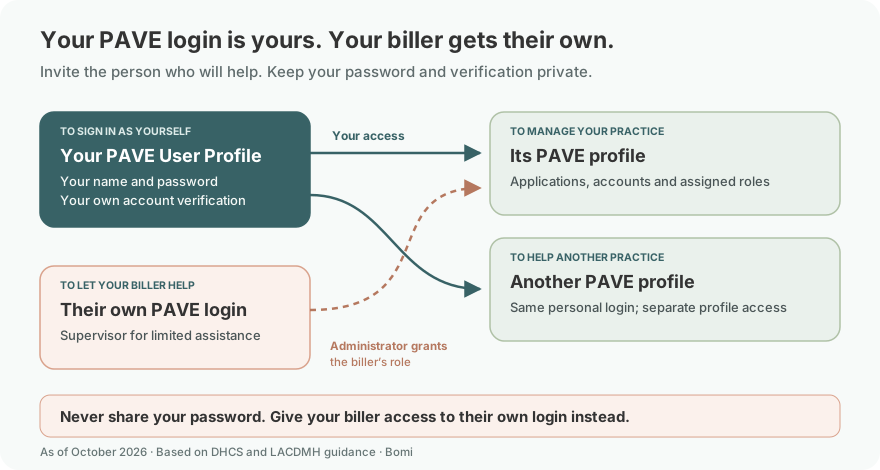
The limited-assistance example uses Supervisor, which Los Angeles County’s March 2026 FAQ, question 20 recommends for helping with an application without signing or submitting it. The DHCS roles deck, pages 27–30 describes broader roles; choose privileges for the work actually needed.
Before you invite your biller
Ask the biller which person will work in PAVE, which email is on that person’s User Profile and what work they need to do. Confirm that you are in the correct provider profile and have Administrator privileges. The DHCS Administrator role description, page 30 includes managing all user privileges; a personal login by itself does not make you the practice Administrator.
Create your personal PAVE User Profile
Choose Sign Up, then enter your own name, username, password, telephone number and recovery email. Complete the account-verification prompt using a method you control. The official profile guide, pages 2–3 illustrates text, phone-call and recovery-email verification options. Follow the live prompts if the screen has changed.
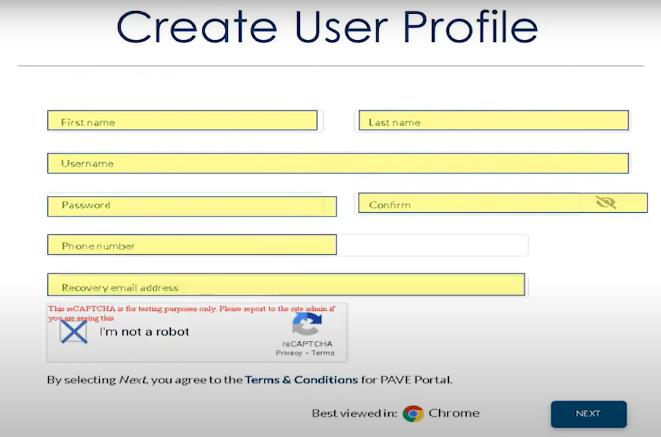
Screenshot source: Medi-Cal PAVE Profile Creation Instructional Guide, page 2; undated guide announced June 5, 2024.
A biller who already has a personal PAVE login uses that account for the invitation. They do not need your password or a new personal login for every client; DHCS’s profile training, page 12 describes one user login linked to multiple provider profiles.
Add your biller in User Administration
Open the correct provider profile and User Administration
Sign in as the practice Administrator and select the provider profile you intend to share. Open My Tools → User Administration, as shown in the official invitation instructions. The five screenshots below are inherited examples retained from this guide’s earlier version; their example details are not registration information to copy.
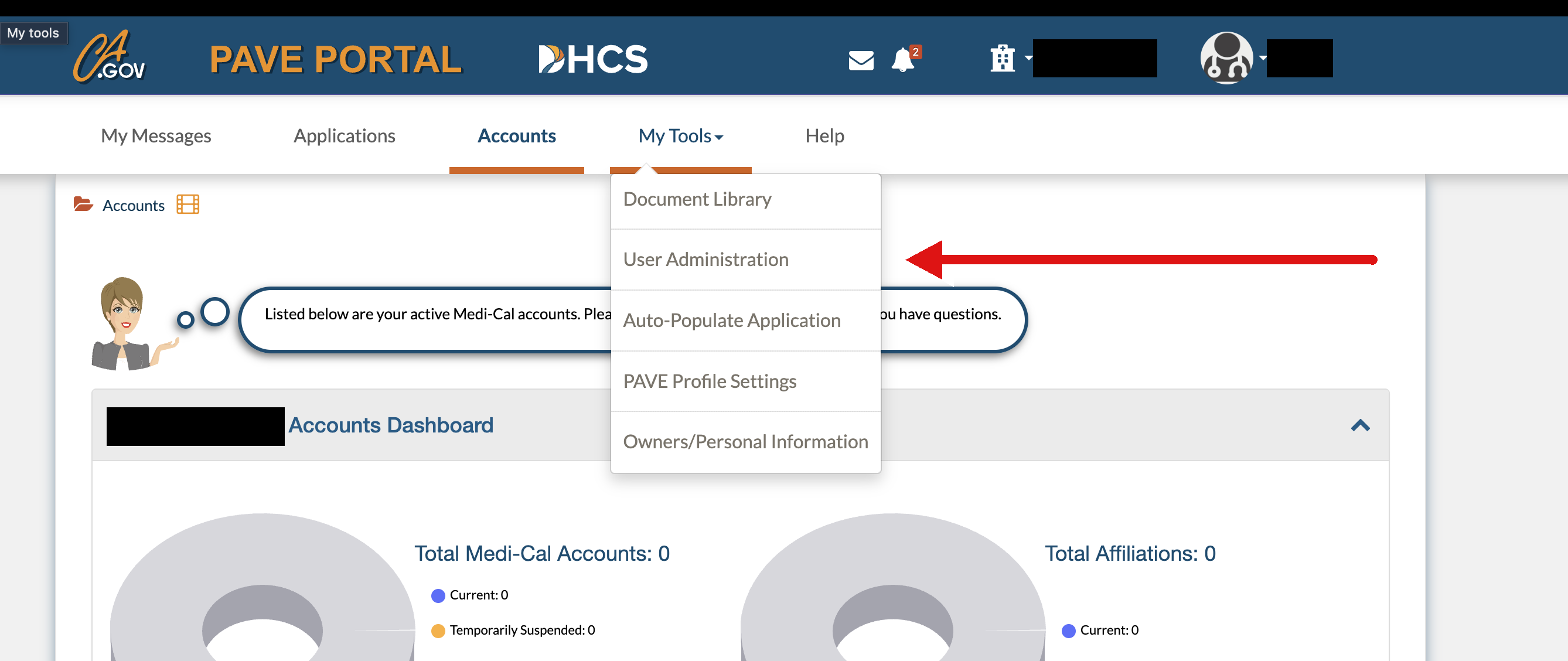
Screenshot source: inherited PAVE portal example from this guide’s earlier Bomi-hosted assets; capture date undocumented; identifying details masked.
Choose Invite User
Select Invite User to start a separate invitation for the person helping the practice. The county FAQ, question 20 describes the same sequence.
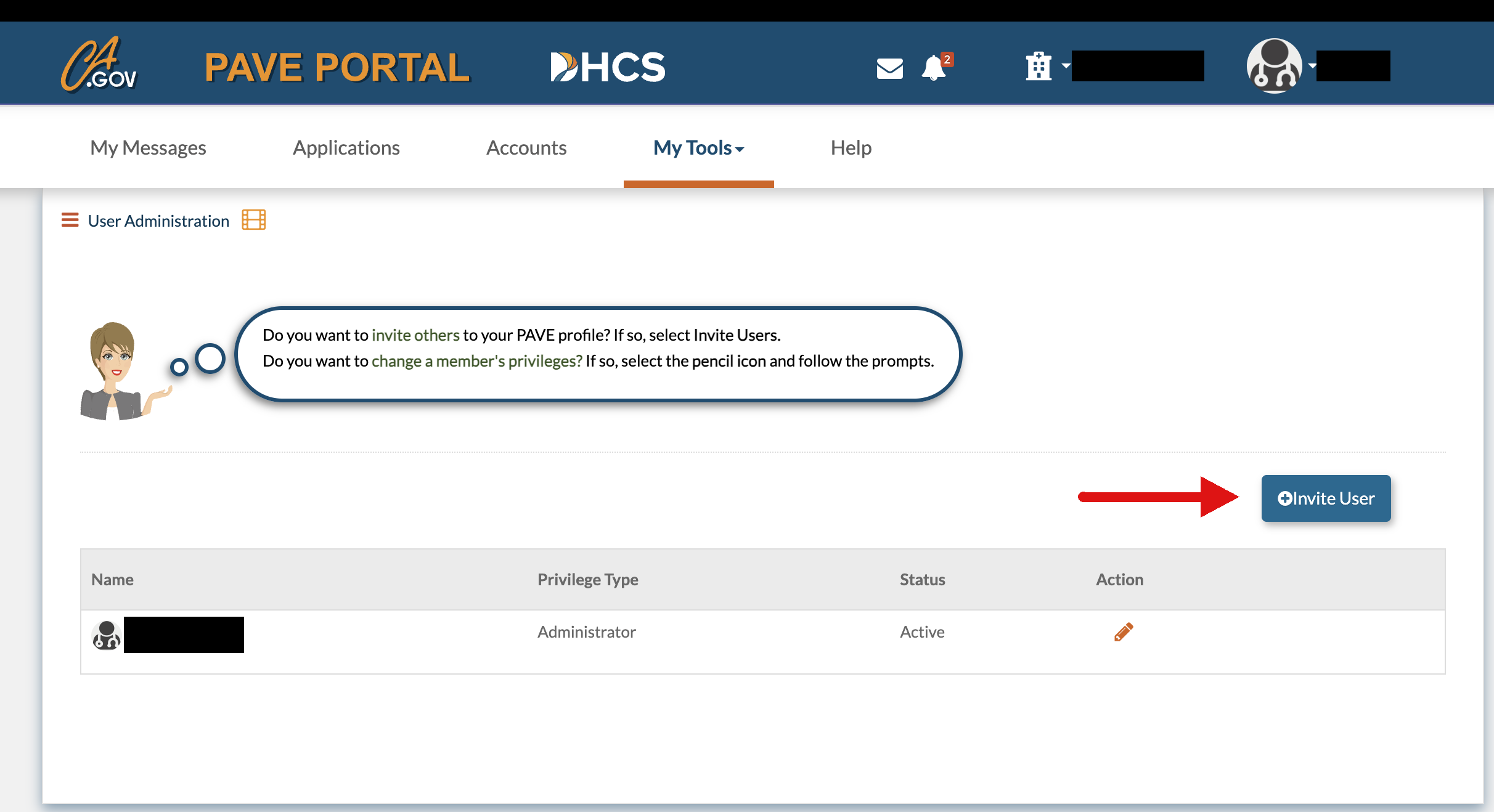
Screenshot source: inherited PAVE portal example from this guide’s earlier Bomi-hosted assets; capture date undocumented; identifying details masked.
Enter the biller’s own details
Enter the actual user’s first name, last name, email and telephone number, then Continue. Use the email tied to their personal PAVE account. Identifying details in this inherited example are masked. DHCS’s invitation job aid lists the fields.
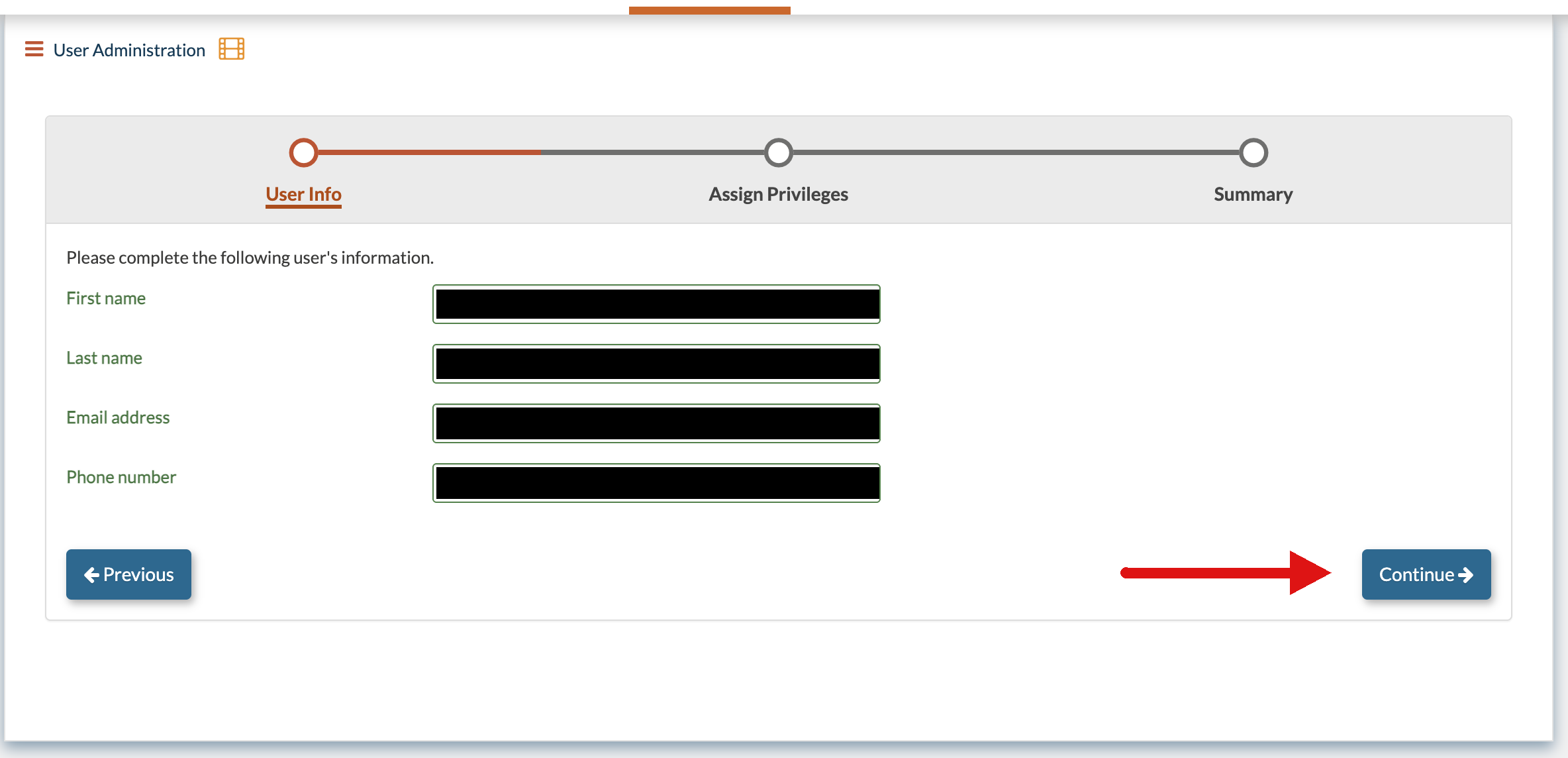
Screenshot source: inherited PAVE portal example from this guide’s earlier Bomi-hosted assets; capture date undocumented; identifying details masked.
Choose privileges for the work the biller needs
For limited help with an application, LACDMH’s March 2026 FAQ, question 20 recommends Supervisor, which allows assistance without signing or submitting the application. If the person needs broader account or application functions, review the DHCS role definitions, pages 27–30 before choosing another role.
The inherited screenshots below select Administrator. That is a broader-access example, not a required biller role: Administrator can manage user privileges and other profile functions. Grant that level only when those duties are intended.
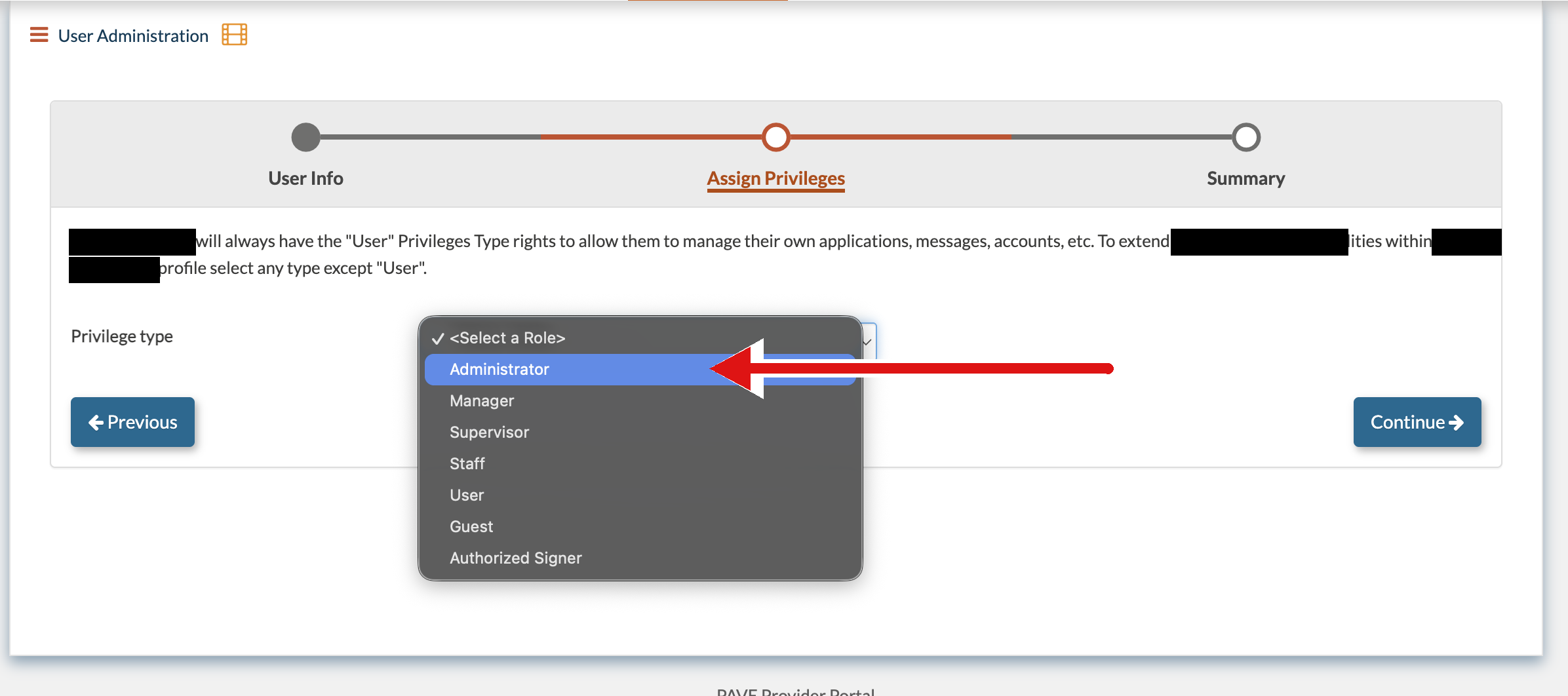
Screenshot source: inherited PAVE portal example from this guide’s earlier Bomi-hosted assets; capture date undocumented; identifying details masked.
Review the displayed privilege list before continuing. Manager and Administrator include electronic signing only when the person is also a legally authorized signer; selecting a role cannot create that legal authority. DHCS’s signer job aid addresses inviting an authorized signer separately from ordinary assistance.
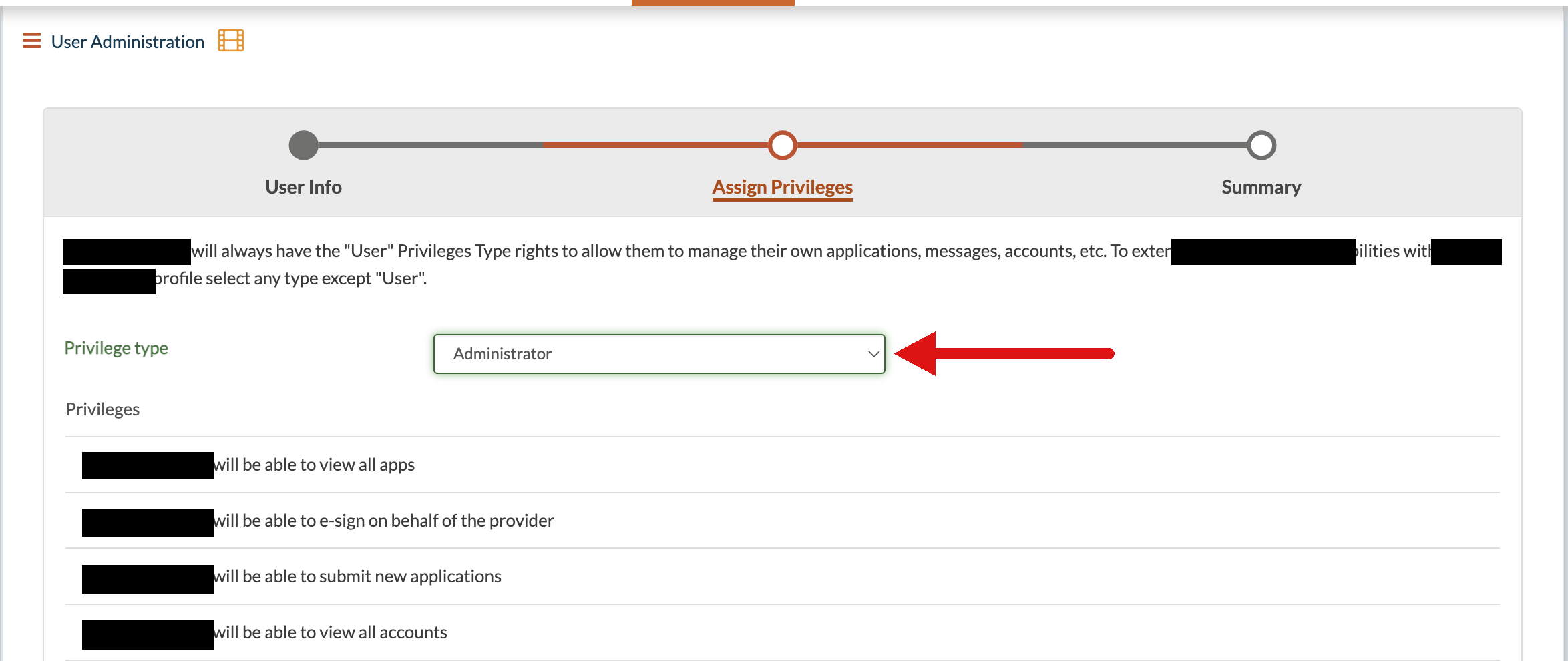
Screenshot source: inherited PAVE portal example from this guide’s earlier Bomi-hosted assets; capture date undocumented; identifying details masked.
Send the invitation and have the biller accept it
Review the person and privileges, then choose Send Invitation. The invitee accepts or rejects the invitation using their own PAVE User Profile; a new user first completes Sign Up. DHCS’s invitation instructions describe both existing-user and new-user routes. Ask the biller to confirm they can open the intended provider profile before assigning the enrollment work.
Who can sign the Medi-Cal application?
Portal access and legal signing authority are separate. DHCS identifies the applicant’s sole proprietor, partner, corporate officer or authorized government/nonprofit representative who can legally bind the applicant. A biller does not gain that authority just by receiving Manager or Administrator privileges. Follow the DHCS authorized-signer instructions for the correct applicant and signer.
Login errors or an invitation that does not work
Cannot sign in: contact PAVE technical support at 866-252-1949, Monday–Friday, 8am–6pm Pacific, excluding state holidays.
Signed in, but no provider profile: confirm the invitee accepted the invitation and is using the intended personal account. The county FAQ’s invitation section separates accepting access from merely creating an account.
Can view but cannot complete a task: the Administrator should compare the assigned privileges with the DHCS role definitions. Do not share the Administrator’s password to work around a missing permission.
Related Medi-Cal guides
Create your Medi-Cal PAVE account — personal login and provider-profile setup.
PAVE business-license and lease documents — prepare the application’s business documents.
Frequently Asked Questions
How do I give my biller access to Medi-Cal PAVE?
The practice Administrator opens the correct PAVE profile, selects My Tools → User Administration → Invite User, enters the biller’s own details, assigns needed privileges and sends the invitation. The biller accepts it with their own User Profile.
Does my PAVE biller need Administrator access?
Administrator is broader access, including managing user privileges. It is not required for every biller. LACDMH recommends Supervisor for limited application assistance without signing or submitting; use the DHCS role descriptions to match other duties.
Does my biller need their own PAVE login?
Yes. Invite the person’s own User Profile rather than sharing your login. A biller who already has a PAVE User Profile can use that login with multiple clients’ PAVE profiles.
Can a biller sign my Medi-Cal PAVE application?
A portal role alone does not give legal signing authority. DHCS separately defines who may legally bind the applicant; assigning Manager or Administrator does not make an ordinary biller an authorized signer.
Why can my biller log in but not see my PAVE profile?
Check whether the biller accepted the invitation and used the personal account associated with it. The Administrator also needs to confirm access was granted to the intended provider profile.
Sources
DHCS PAVE profiles and user roles — September 7, 2021 revision currently linked by DHCS.
LACDMH PAVE FAQ — March 11, 2026 revision; question 20.
DHCS credentialer/authorized-signer instructions — invitation flow and legal authority.
Medi-Cal PAVE Profile Creation Instructional Guide — personal-account examples, pages 1–3.
DHCS Provider Enrollment Division — technical and enrollment contacts.
Need help getting payer-ready?
For practices enrolled in Bomi Billing, our team handles CAQH, payer applications, attestations, roster updates, and ongoing credentialing. Credentialing requires Bomi Billing.
Credentialing with billing
About Bomi
Founded by George Ruan, Dax Earl, and Andrey Goder, Bomi helps independent therapists and group practices with insurance billing, credentialing, and payer follow-up. Bomi grew out of Dax’s experience helping his mother with her therapy practice, with a clear purpose: reduce the administrative burden of insurance while keeping practice owners in control.
Meet our founders