
InstaMed Login: Provider and Biller Access
By George Ruan • August 18, 2026
For InstaMed provider login, open InstaMed Online for Providers and sign in with your own provider-account credentials.
As of October 9, 2026. This guide covers provider and biller access to an existing account. Practice enrollment in payer EFT is a separate task.
Sections
- Direct links: InstaMed login, registration and account help
- TL;DR: use your own login, and give your biller their own
- Who needs their own InstaMed login?
- Before you create access
- Account setup: enrollment comes before delegated access
- How to add your biller to InstaMed
- InstaMed login errors, password resets and lockouts
- Frequently Asked Questions
- Sources
Direct links: InstaMed login, registration and account help
Provider login — existing provider-account users.
New-account registration and product terms — review who may apply and which product you need.
Payer ERA/EFT enrollment — the separate payer-payment application.
Password reset, account unlock and provider support — use InstaMed’s published help links; provider support is 866-467-8263.
Use your own User ID, password and Corporate ID; the manual’s example below is the sign-in prompt shown to an existing account during registration.
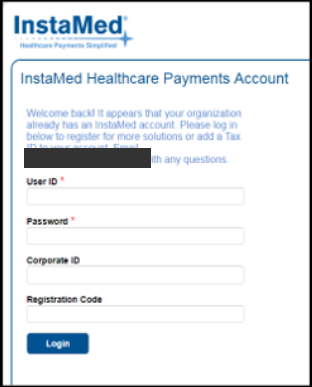
Screenshot source: Brown & Toland Provider Manual 2026 (revised September 2025), page 28: returning-account sign-in during registration.
TL;DR: use your own login, and give your biller their own
Sign in with your own InstaMed user. Your biller gets a separate user with access rights assigned by the practice administrator; confirm the current role description in the Help Center. Payer EFT enrollment is separate and must be submitted by the owner or an authorized employee. Registration terms.
For payment options and fees, see the InstaMed virtual-card fees and no-fee EFT guide.
Who needs their own InstaMed login?
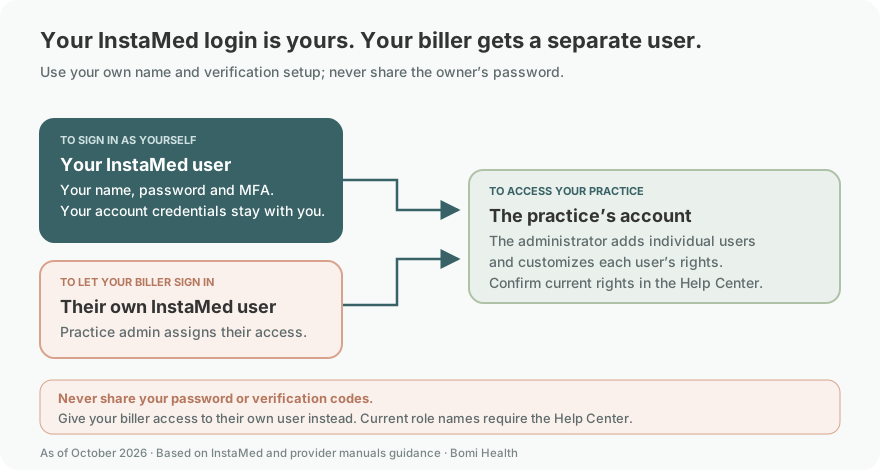
Give your biller a separate user instead of sharing the owner’s credentials. InstaMed describes role-based security for provider accounts. A historical provider training manual also describes adding individual users and customizing their rights after account activation; it does not establish today’s button labels or role names. InstaMed Provider Solutions; historical registration manual.
Keep each login personal: use the individual’s name and their own verification setup. If two-step verification is prompted, the user handles their own code. Never share your password or verification codes. Public sources do not establish a current universal biller role name or one-user/multiple-organization arrangement; ask the in-account Help Center for the exact rights instead of assuming either. Provider sign-in and verification prompts; User-access help.
Before you create access
Confirm that the practice already has an activated provider account and that the person making changes has user-management authority.
Use your existing account credentials. The historical manual describes a User ID, password and Corporate ID; follow the current portal’s prompts rather than guessing an identifier.
Agree which payer-payment and remittance tasks the biller will handle, then match those tasks to the current account’s permission descriptions.
For Bomi, use the exact practice-specific credentialing email from your Bomi correspondence: credentialing.<practice-slug>@billwithbomi.com. Replace the example with the alias Bomi supplied.
Account setup: enrollment comes before delegated access
If the practice has no account, review the official registration product terms. The owner or authorized employee must complete the payer-payment application; a third-party biller cannot submit it for the practice. Registration terms.
For insurance-claim deposits and ERA, use payer ERA/EFT enrollment. Patient-payment processing is a different product.
After the account is active, return to the provider login and use an authorized administrator to arrange the biller’s individual access.
Choose payer ERA/EFT when setting up insurance payments
The manual’s Select Solutions illustration identifies ERA/EFT ONLY PAYER PAYMENTS. Use the current payer ERA/EFT application and review its current terms. This is a registration product choice, not a user-role screen; patient-payment processing is a separate product. The manual was revised September 2025, so current layout and other product offers may differ. Payer-payment selection guide.
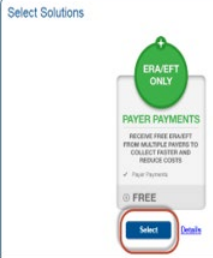
Screenshot source: Brown & Toland Provider Manual 2026 (revised September 2025), page 28.
How to add your biller to InstaMed
Sign in as an authorized account administrator and open the account’s user-management area. Public sources do not establish a current universal menu path; use the Help Center inside your account if the option is unclear.
Add the biller as a separate individual user using their actual name and email. Their password and verification setup belong to them; never share yours. For Bomi, use George Ruan and the practice-specific credentialing alias supplied in your correspondence.
Read the current permission descriptions. Grant the payer-payment and remittance capabilities agreed with your biller. Ask support about ambiguous rights before saving; do not assume a group or role name from an older manual.
Complete the current account’s activation instructions and tell the biller that their separate user is ready. Keep the owner’s password private.
InstaMed’s developer documentation describes bulk import as an optional feature for customers requiring many users. It does not establish the current form or permissions for adding one provider-account user. User Management documentation.
InstaMed login errors, password resets and lockouts
For password reset or account unlock, use the links on InstaMed Provider Support. More help articles are available in the Help Center after login. If you cannot find user management or determine the required permissions, ask provider support at 866-467-8263. Account support and a payer’s claim-payment decision are different questions; direct claim disputes to the payer.
Frequently Asked Questions
What is the InstaMed provider login?
The official provider login is https://online.instamed.com/providers/. Use your own provider-account credentials. Registration and payer ERA/EFT enrollment are separate entrypoints.
How do I reset my InstaMed password?
Use the password-reset help linked from InstaMed Provider Support. That page also links account-unlock help and lists provider support at 866-467-8263.
How do I add my biller to InstaMed?
An authorized administrator adds an individual user in the activated provider account and assigns rights based on the current permission descriptions. Public sources do not establish today’s universal role names or menu path; ask the in-account Help Center or provider support if unclear.
Can my biller enroll my practice in InstaMed EFT?
InstaMed’s public registration terms restrict payer-payment applications to the owner or an authorized employee and prohibit third-party applications. Adding a biller as an account user does not replace that enrollment requirement.
Which email address should I use for Bomi?
Use the exact practice-specific credentialing email from your Bomi correspondence, in the format credentialing.<practice-slug>@billwithbomi.com. Replace the example text with the alias supplied for your practice.
Sources
Historical provider registration manual — supports individual users and configurable rights, not current menu labels.
Want Bomi to handle insurance billing?
Bomi helps therapy practices with benefit checks, claims, denials, balances, CAQH, attestations, and revenue management.
Book a call
About Bomi
Founded by George Ruan, Dax Earl, and Andrey Goder, Bomi helps independent therapists and group practices with insurance billing, credentialing, and payer follow-up. Bomi grew out of Dax’s experience helping his mother with her therapy practice, with a clear purpose: reduce the administrative burden of insurance while keeping practice owners in control.
Meet our founders