
Wyoming DyP Login: Access and Service-Location Changes
By George Ruan • July 28, 2026
For Wyoming DyP provider login, open the official DyP sign-in page and use your own personal account.
Login and access guidance checked October 10, 2026. DyP is Wyoming Medicaid’s enrollment and provider-record portal. The Wyoming Department of Health enrollment page directs existing providers to use Change of Circumstance (CoC) for updates.
Sections
- Direct links: DyP login, registration and help
- TL;DR: use your own login, and give your biller their own
- Who needs their own DyP login
- Before you create access
- Create your personal DyP account
- Add your biller as a Collaborator
- Login errors and missing access
- Change an existing service location through CoC
- Before You Start
- Open the Wyoming DyP Provider Portal
- Submit the Service-Location CoC
- Track the Request Until It Is Approved
- When Can You Bill from the New Location?
- What to Send Your Biller
- Need Help?
- Related Wyoming guides
- Frequently Asked Questions
- Sources
Direct links: DyP login, registration and help
Sign in: Wyoming DyP login — use your personal username and password.
Create an account: DyP Sign In / Register — select Register on the public login screen.
Forgot your password? DyP password reset — the link on the sign-in page. For an unknown username or access to the wrong provider record, contact Enrollment Services.
Enrollment help: Wyoming Provider Enrollment Customer Service — 1-877-399-0121 or WYEnrollmentSvcs@HHSTechGroup.com.
Guides: DyP Info for Providers — registration, enrollment and collaborator instructions.
Claims and eligibility: Wyoming Medicaid Provider Home — a separate secure Provider Portal and registration, not your DyP enrollment login.
The DyP login page has Username and Password fields; existing users choose Log In, and first-time users choose Register.
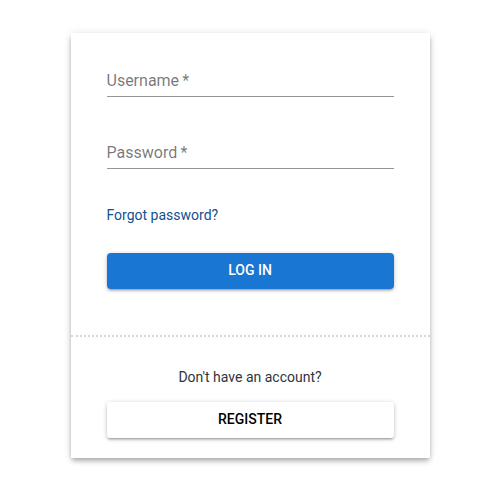
Screenshot source: Screenshot of the public DyP sign-in page, captured October 10, 2026.
TL;DR: use your own login, and give your biller their own
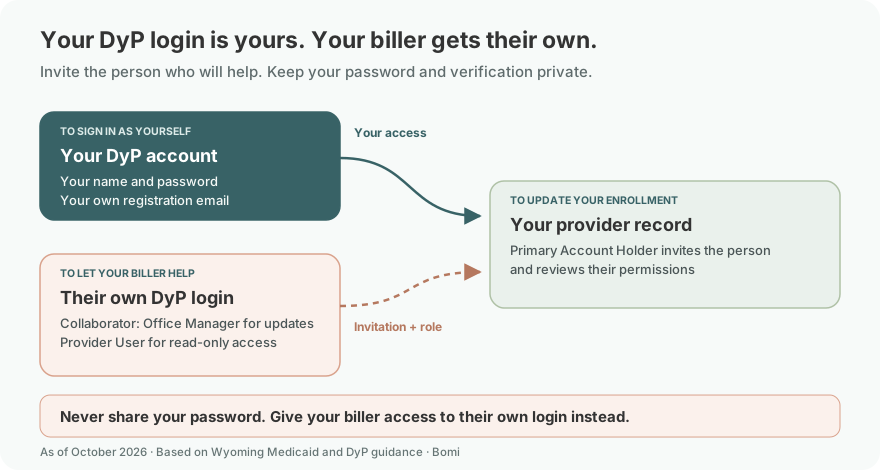
Use your own DyP login. Your biller uses their own account and the Primary Account Holder invites them as a Collaborator: Office Manager for updates or Provider User for read-only access, with permissions reviewed for the work needed. The Wyoming claims portal has separate access.
Who needs their own DyP login
The provider, office staff and biller keep their own credentials and registration email. Do not share a password or verification message. The DyP Help Center allows the Primary Account Holder to invite Collaborators and control their permissions on the provider record. It lists Office Manager and Provider User as different access levels.
Before you create access
Confirm whether the provider already has a DyP enrollment record and who holds the primary account. A new personal login is different from a new provider enrollment. For a record already enrolled, arrange access or recovery before starting a duplicate application. The WDH enrollment instructions distinguish registration, application submission and later CoC maintenance.
Create your personal DyP account
Open Sign In / Register, choose Register and complete the required fields with your own details. The currently linked individual-enrollment guide, page 7 shows email, password and personal-name fields. Use the live form’s requirements; this older guide is still linked on the current resource page.
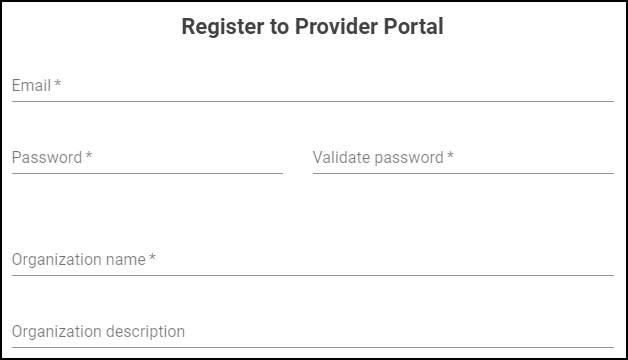
Screenshot source: DyP User Guide for an Individual Enrollment, page 7, Figure 2; revision table last updated January 2021.
Confirm the registration email before signing in, as the WDH enrollment page instructs. Keep that email and password with the person who registered. Confirming a personal account is not approval of a Medicaid enrollment application.
Add your biller as a Collaborator
The Primary Account Holder should use the vendor’s Inviting Collaborators QRG and review the exact permissions before sending an invitation:
Open the menu under your email address and select Manage Users.
Choose Invite Collaborator, then enter the actual person’s email and name.
Choose Office Manager when the person needs read/update access, or Provider User for read-only access. Review the assigned permissions instead of sharing the primary login.
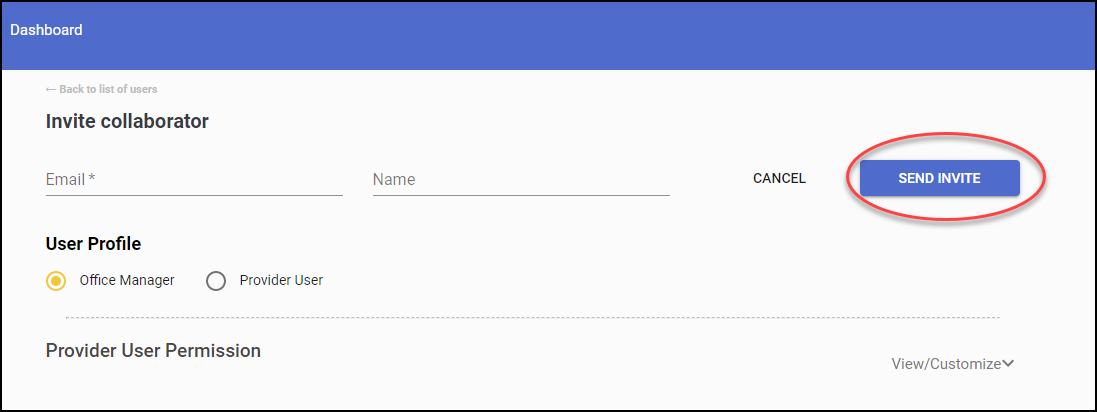
Screenshot source: DyP Inviting Collaborators on the Portal QRG, pages 1–2, invitation form; no printed revision date.
Open View/Customize to review and adjust the permissions, close the panel, then choose Send Invite. The QRG shows the collaborator listed as Invited after sending. The biller uses their own login; verify their access to the intended record before assigning the CoC work. The current Help Center confirms the Primary Account Holder controls the permissions.
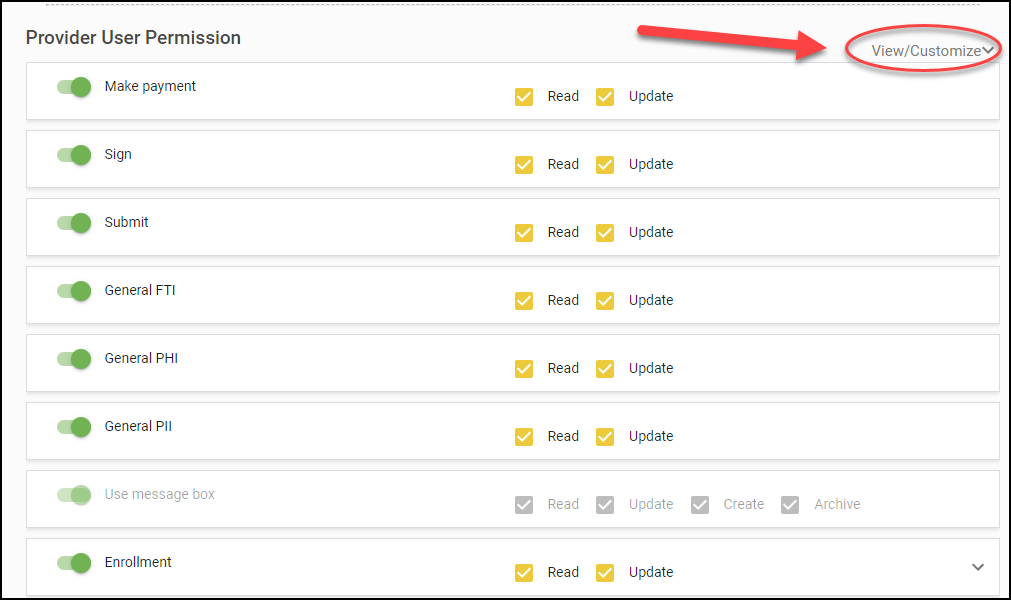
Screenshot source: DyP Inviting Collaborators on the Portal QRG, pages 2–3, View/Customize panel; no printed revision date.
Login errors and missing access
Forgotten password: use Forgot password? on the public sign-in page. Contact Enrollment Services if you do not know the username or need account-ownership help.
Registration email missing: check spam and use a current browser; if the message still does not arrive, ask Enrollment Services for help. See the DyP Help Center’s verification-email guidance.
Signed in, but cannot update the record: ask the Primary Account Holder to check your collaborator permissions. Provider User is read-only; Office Manager allows updates, subject to the permissions assigned. Review the official role explanation.
Change an existing service location through CoC
Use the existing provider record. For an enrolled provider’s address change, the DyP address instructions direct you to the CoC tab and the relevant address section.
Before You Start
Use your own authorized DyP account. Use the primary account or your own Collaborator login with the permissions needed for the enrolled provider file. Do not share the portal password.
Write down the old and new locations. Include the full street address, suite, city, state, ZIP code, and any location-specific phone or contact information that changed.
Know which address type is changing. A primary service location, secondary service location, mailing address, and billing address are separate choices in the CoC flow.
Keep supporting documents available. The official help center says the portal may request updated documentation depending on the fields changed.
Open the Wyoming DyP Provider Portal
Go to the Wyoming DyP Provider Portal and select Sign In / Register. The public page identifies “Submit change of circumstance” as a function of a secure provider account.
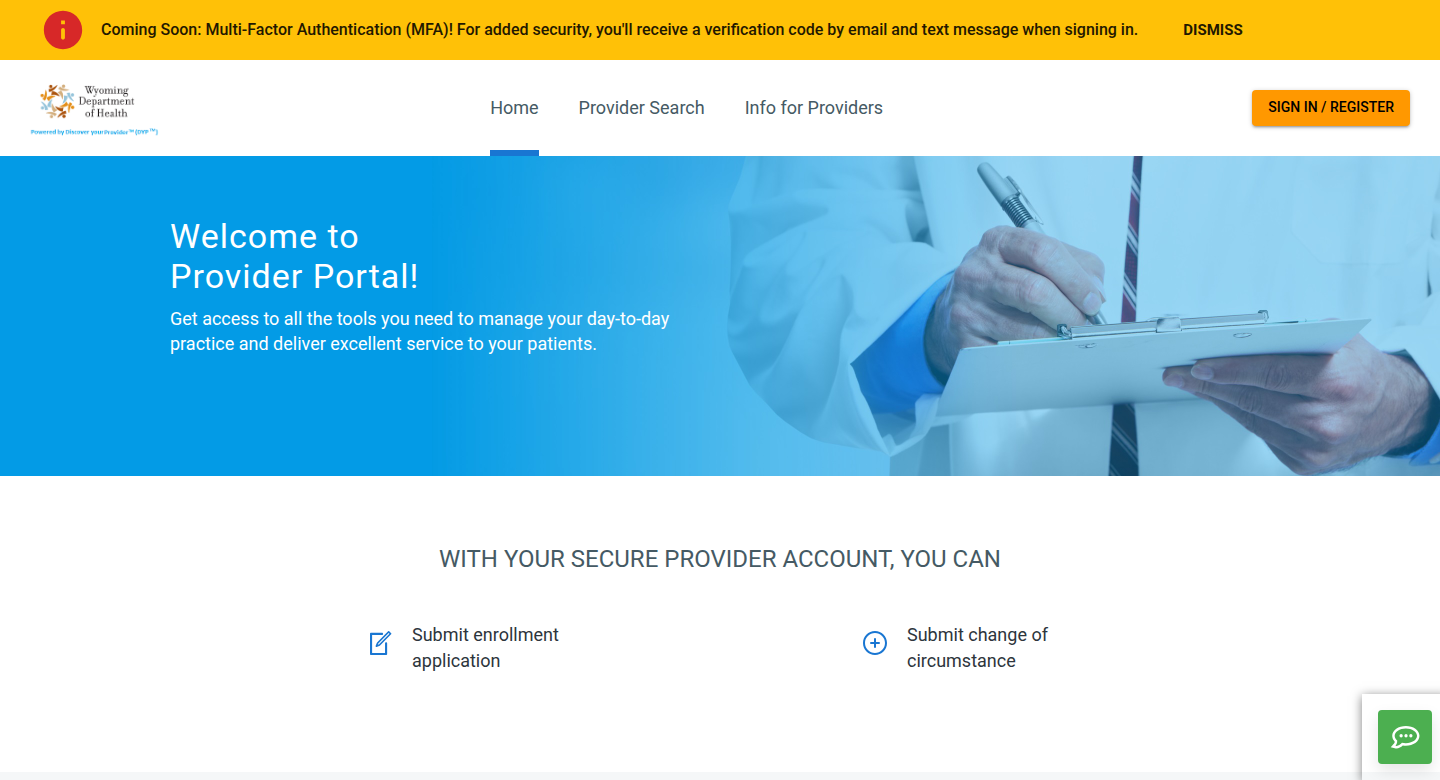
Screenshot source: Wyoming DyP Provider Portal, captured July 28, 2026. © Wyoming Department of Health and HHS Technology Group.
Submit the Service-Location CoC
Sign in to the existing provider file. Use your own account with access to the enrolled individual or organization; the Primary Account Holder controls collaborator permissions.
Open the CoC tab. The official help center directs providers to start address changes from the Change of Circumstance tab in the provider enrollment portal.
Initiate a new CoC request. Do not start Individual Enrollment or Group Enrollment when the provider is already enrolled.
Choose the correct address section. For the main practice location, choose Primary Service Location. Use Secondary Service Location only for an additional enrolled site. Address Details is for mailing or billing addresses.
Enter the corrected location. Replace the obsolete address with the complete current service address. Review every location field and leave unrelated enrollment, ownership, pay-to, and tax information unchanged unless it also needs correction.
Upload requested documents. Add only the documentation the portal requests for the fields being changed.
Review the change. DyP highlights changed information in green. Confirm that the new location is highlighted and that no unrelated fields changed.
Submit the CoC. Saving a draft is not the same as submitting. Save the confirmation or request reference after the portal accepts the submission.
Wyoming’s Address-Change Instructions
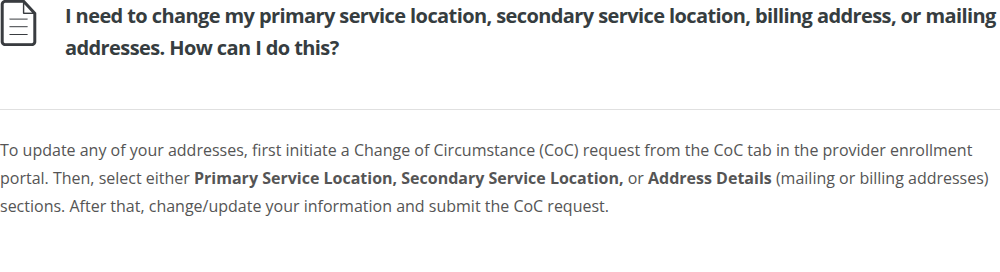
Screenshot source: Wyoming DyP Help Center address instructions, captured July 28, 2026. © HHS Technology Group.
Track the Request Until It Is Approved
Return to the CoC tab and expand the request to see its timeline. Wyoming lists these possible statuses: In Progress, Submitted, Under Review, Requested Additional Information, Pending Review, Pending Approval, Approved, and Denied.
Requested Additional Information: open the request, read the payer’s question, and provide the missing information or document.
Approved: the approved changes have been applied to the provider data. Verify that the new service location appears in the provider file.
Denied: read the denial reason before starting another request. Correct the stated issue or contact Enrollment Services for guidance.
When Can You Bill from the New Location?
Wait until the approved change appears. Wyoming Medicaid tells providers to allow one to two business days for a CoC update to appear in the Provider Portal before submitting claims.
For a service-location-only correction, do not change the provider’s NPI, pay-to identity, EIN, or W-9 information unless one of those items is independently wrong. Update any separate practice systems, clearinghouse records, payer directories, and NPPES records that also carry the old address; a Wyoming CoC does not automatically change those outside systems.
What to Send Your Biller
You do not need to send your portal credentials. Instead, send the biller one of the following after submission:
the CoC confirmation or request reference;
a screenshot showing the request in Submitted or Under Review status;
the approval notice; and
a screenshot of the updated Provider Data page after the new service location appears.
Redact passwords, verification codes, bank information, full tax identifiers, and unrelated provider data before sharing screenshots.
Need Help?
For enrollment, demographic verification, or CoC questions, contact Wyoming Enrollment Services at WYEnrollmentSvcs@HHSTechGroup.com or 1-877-399-0121.
Related Wyoming guides
WDH provider enrollment and billing — enrollment steps and contacts.
DyP Info for Providers — current links to enrollment and collaborator guides.
DyP Change of Circumstance Help Center — address changes and request status.
Frequently Asked Questions
Where is the Wyoming Medicaid DyP provider login?
Use wyoming.dyp.cloud/login for enrollment and provider-record maintenance. The Wyoming Medicaid claims and eligibility Provider Portal has separate registration and access.
How do I create a Wyoming DyP account?
Choose Sign In / Register, select Register and enter your own details. Confirm the registration email before signing in. Creating the account does not approve a Medicaid enrollment application.
How do I give my biller access to Wyoming DyP?
The Primary Account Holder opens Manage Users and Invite Collaborator, enters the biller’s own details and grants the needed permissions. Office Manager allows read/update access; Provider User is read-only. The biller uses their own login.
What if I forgot my DyP password?
Use Forgot password? on the public DyP sign-in page. For an unknown username, missing registration email or account-ownership help, contact Wyoming Enrollment Services at 1-877-399-0121 or WYEnrollmentSvcs@HHSTechGroup.com.
Does a Wyoming Medicaid service-location CoC create a new enrollment?
No. A Change of Circumstance updates the provider’s existing enrollment record. Do not start a duplicate Individual or Group Enrollment solely to correct a service location.
Can a Wyoming Medicaid CoC change a primary service location?
Yes. The DyP Help Center directs providers to open the CoC tab and choose Primary Service Location, Secondary Service Location, or Address Details depending on the address being corrected.
Does a service-location CoC change the provider’s pay-to or EIN?
Not when only the service-location section is changed. Leave the NPI, pay-to identity, EIN, and W-9 information alone unless one of those items is independently incorrect.
When can the provider bill from the new Wyoming location?
Wait for approval, verify that the new location appears in the provider record, and allow one to two business days for the update to appear in the Wyoming Medicaid Provider Portal before submitting claims.
Should a Wyoming Medicaid provider share their DyP password?
No. The biller uses their own account. The Primary Account Holder can invite them as a Collaborator with Office Manager or Provider User permissions, or submit the CoC and share the confirmation instead.
How can I check the status of a Wyoming Medicaid CoC?
Open the CoC tab, locate the request, and expand its banner to view the full status timeline. Respond promptly if the status is Requested Additional Information.
Sources
DyP individual-enrollment guide — page 7, registration; older guide currently linked by vendor.
DyP Inviting Collaborators QRG — current linked DOCX, no printed revision date.
Operational note: Portal labels and payer requirements can change. Confirm the current DyP instructions and Wyoming Medicaid guidance before submitting provider-data changes or claims.
Want Bomi to handle insurance billing?
Bomi helps therapy practices with benefit checks, claims, denials, balances, CAQH, attestations, and revenue management.
Book a call
About Bomi
Founded by George Ruan, Dax Earl, and Andrey Goder, Bomi helps independent therapists and group practices with insurance billing, credentialing, and payer follow-up. Bomi grew out of Dax’s experience helping his mother with her therapy practice, with a clear purpose: reduce the administrative burden of insurance while keeping practice owners in control.
Meet our founders