
YesNM Login: New Mexico Medicaid Provider Portal
By George Ruan • October 9, 2026
For YesNM provider login, open the official YesNM entry and sign in with your Provider or Provider Admin account. As of October 9, 2026, use Turquoise Claims for eligibility and claims, or Provider/PED Enrollment for state enrollment work. HCA’s current portal guidance.
Sections
- Direct links: YesNM login and provider support
- TL;DR: use your own login, and give your biller their own
- Who needs their own YesNM login?
- Before you create provider access
- Create a YesNM provider account
- Add your biller to Turquoise Claims
- One YesNM login, separate claims and enrollment permissions
- Login errors and account recovery
- Related New Mexico Medicaid guides
- Need help with New Mexico Medicaid billing?
- Frequently Asked Questions
Direct links: YesNM login and provider support
The YesNM sign-in screen looks like this. Existing users enter their email and password; first-time providers follow the account-creation guide linked above.
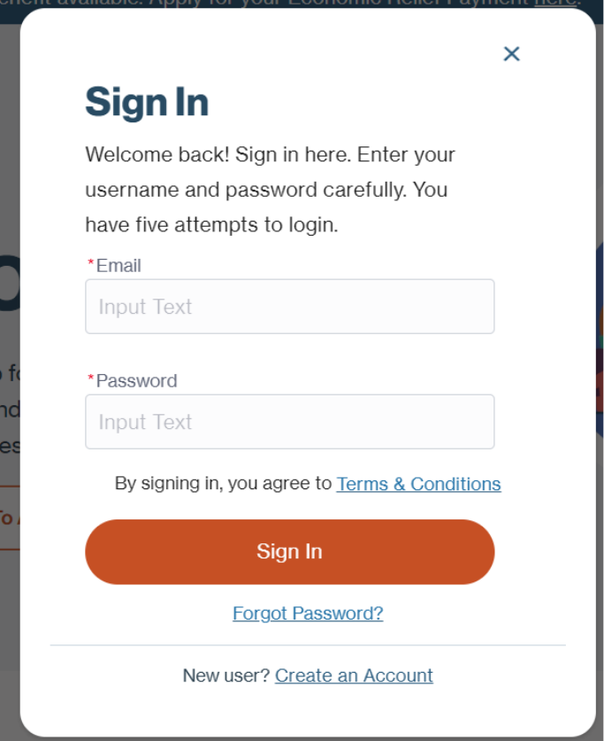
Screenshot source: Creating a Provider and PED Enrollment System Provider Account, page 1.
TL;DR: use your own login, and give your biller their own
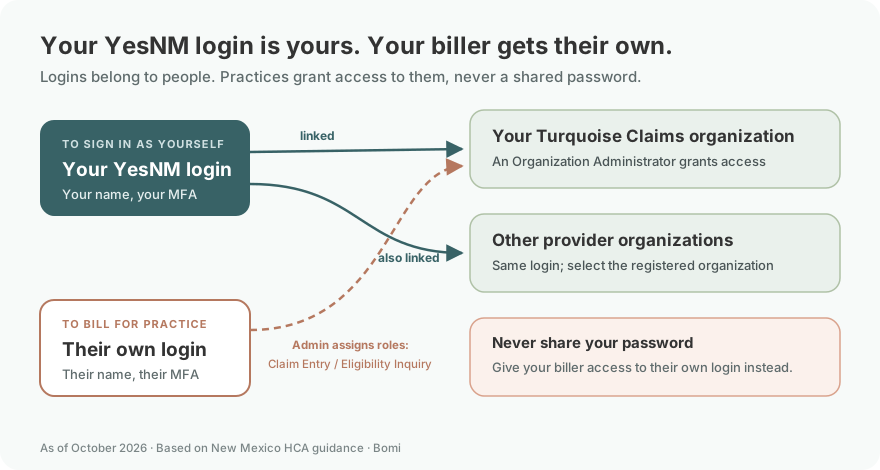
Use your own YesNM account. Your biller uses their own account, which your Organization Administrator adds with the needed Turquoise Claims roles, such as Claim Entry or Eligibility Inquiry. Enrollment access needs a separate invitation from your Provider/PED workspace administrator. Claims account and roles guide and enrollment access FAQ.
Who needs their own YesNM login?
Each provider, staff member and biller needs their own account in their own name. Keep your MFA and email verification codes under your control; the account guide sends a one-time passcode to your email. Never share your password. Turquoise Claims lets an administrator register multiple provider organizations under the same account and select the organization from a dropdown. Organization access still needs the appropriate roles. HCA provider account guide and claims user setup.
Before you create provider access
Identify the existing claims organization and enrollment workspace administrators first. For claims organization setup, have the enrolled Medicaid ID or NPI, tax identifier and location ZIP ready. HCA’s enrollment FAQ describes one workspace per NPI; request an invitation to the existing workspace when appropriate. Claims organization setup guide and enrollment workspace requirements.
Create a YesNM provider account
Open YesNM and select Sign In. In the provider account guide, HCA directs new users to Medicaid Provider or Medicaid Provider Admin, then Create an Account.
Select Provider when the account-creation flow asks for the persona. Enter your own information and type your email address carefully.
Enter the one-time passcode sent to your email and select Submit. Continue to Provider/PED Enrollment, Recertification, Revalidation for enrollment work.
Source for these steps: HCA provider account creation guide.
Already have a Provider or Provider Admin account? HCA’s Turquoise Claims FAQ says either role can access the claims system; an existing Provider can become the organization administrator by entering first and setting up the organization. Coordinate that first entry within your practice. HCA account and administrator FAQ.
Add your biller to Turquoise Claims
Have each biller create their own YesNM account. Decide who will register the organization first.
The administrator opens Turquoise Claims, selects Provider Portal, then +Add Organization. The guide asks for the provider Medicaid ID or NPI, EIN/SSN, and provider location ZIP code. Match the enrollment record.
For an additional user, the administrator opens Manage Account → Search User → +Add. Search the biller’s own email registered in YesNM, assign the appropriate roles—such as Claim Entry for entering claims or Eligibility Inquiry for eligibility inquiries—and select Update. These are the guide’s actual role names; do not give the biller your password.
Keep a backup administrator. HCA recommends one so access does not depend on a single person.
Source for these steps: Turquoise Claims login and account setup guide.
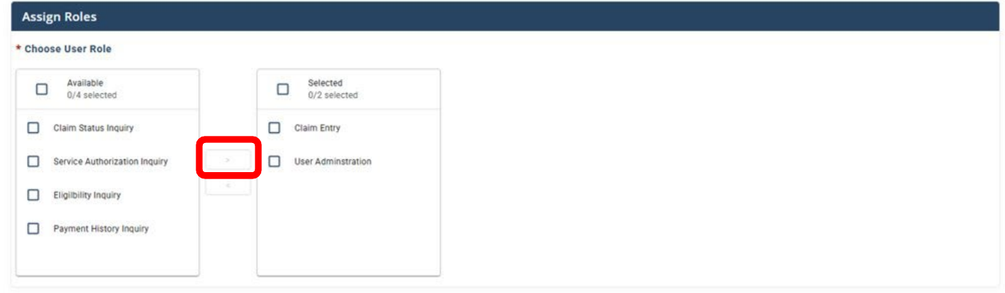
Screenshot source: Turquoise Claims Login and Account Set-Up Participant User Guide, page 12.
One YesNM login, separate claims and enrollment permissions
Turquoise Claims handles claims, eligibility and payment information through organization roles. Provider/PED Enrollment handles enrollment, updates and revalidation through workspace invitations. HCA says Turquoise Claims replaced the old NM Medicaid Provider Web Portal and OmniCaid; use the current guides rather than a legacy MMIS bookmark. HCA claims FAQ and enrollment workspace FAQ.
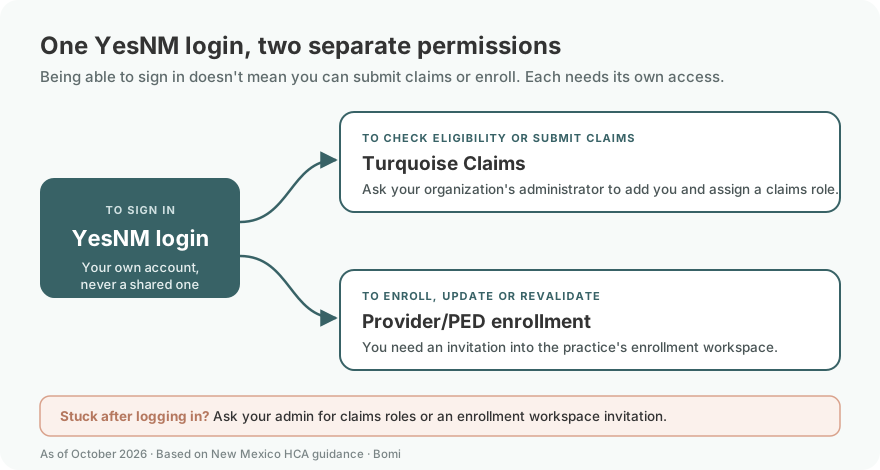
For enrollment tasks, HCA’s enrollment FAQ describes one workspace per National Provider Identifier (NPI), at least one administrator, and invitations sent to each user’s email. Ask the existing workspace administrator to invite the biller. A claims organization role is not the same thing as an enrollment workspace invitation. HCA enrollment workspace FAQ.
Login errors and account recovery
If the organization already exists, the claims setup guide says to contact its administrator. If organization details do not match, check the enrolled provider ID/NPI, tax identifier, and location ZIP before trying again. A successful YesNM sign-in alone does not finish organization access. HCA organization setup instructions.
For a redirect that lands back on a login page, HCA’s troubleshooting guide describes trying an InPrivate window in Edge or an Incognito window in Chrome, signing into YesNM again, and selecting Continue to Turquoise Claims. HCA login troubleshooting guide.
For YesNM password resets, the enrollment FAQ lists 1-800-283-4465. For provider-system help, HCA’s provider overview lists the Consolidated Customer Service Center at 1-800-299-7304. Save the official guides alongside your bookmark. HCA provider support.
Password-reset number source: HCA YesNM account FAQ.
Related New Mexico Medicaid guides
Need help with New Mexico Medicaid billing?
Bomi helps therapy practices coordinate credentialing, eligibility, claims, and denial follow-up. Bring the state enrollment record, requested plan participation, and unresolved billing questions into one clear workflow.
See Bomi’s billing services or credentialing support.
Frequently Asked Questions
What is the YesNM provider login?
Open the official YesNM entry and use your Provider or Provider Admin account. Turquoise Claims and Provider/PED Enrollment are reached from that shared sign-in.
Is YesNM the same as Turquoise Claims?
YesNM is the shared sign-in. Turquoise Claims is the provider claims, eligibility and payment tool, with separate organization roles. Provider/PED Enrollment uses enrollment workspaces.
How do I reset my YesNM password?
HCA’s enrollment FAQ lists 1-800-283-4465 for YesNM password-reset help. Use the current official troubleshooting guide for redirects and provider-system access problems.
Can my biller use my YesNM login?
Give the biller their own account and the appropriate claims roles or enrollment workspace invitation. Do not share your password.
Want Bomi to handle insurance billing?
Bomi helps therapy practices with benefit checks, claims, denials, balances, CAQH, attestations, and revenue management.
Book a call
About Bomi
Founded by George Ruan, Dax Earl, and Andrey Goder, Bomi helps independent therapists and group practices with insurance billing, credentialing, and payer follow-up. Bomi grew out of Dax’s experience helping his mother with her therapy practice, with a clear purpose: reduce the administrative burden of insurance while keeping practice owners in control.
Meet our founders