
Switching from SimplePractice
Connect your SimplePractice account. We move the rest.
Clients, insurance details, your calendar, documents, and billing history come across while you keep seeing clients in SimplePractice. You review everything in Bomi, then activate on a day you choose. Nothing changes in SimplePractice until you say go.
How the move works
Five steps. One of them is a checkbox.
These are the real screens from Bomi setup, shown with a demo practice. Your version has your clients in it.
- 1
Tick one box at sign-up
Create your account the normal way and tick "I’d like to import my existing data from SimplePractice." That is the whole request.
Already a Bomi Billing client on SimplePractice? Your sign-in shows a "Set up Bomi EHR" card instead. Same import, no new account.
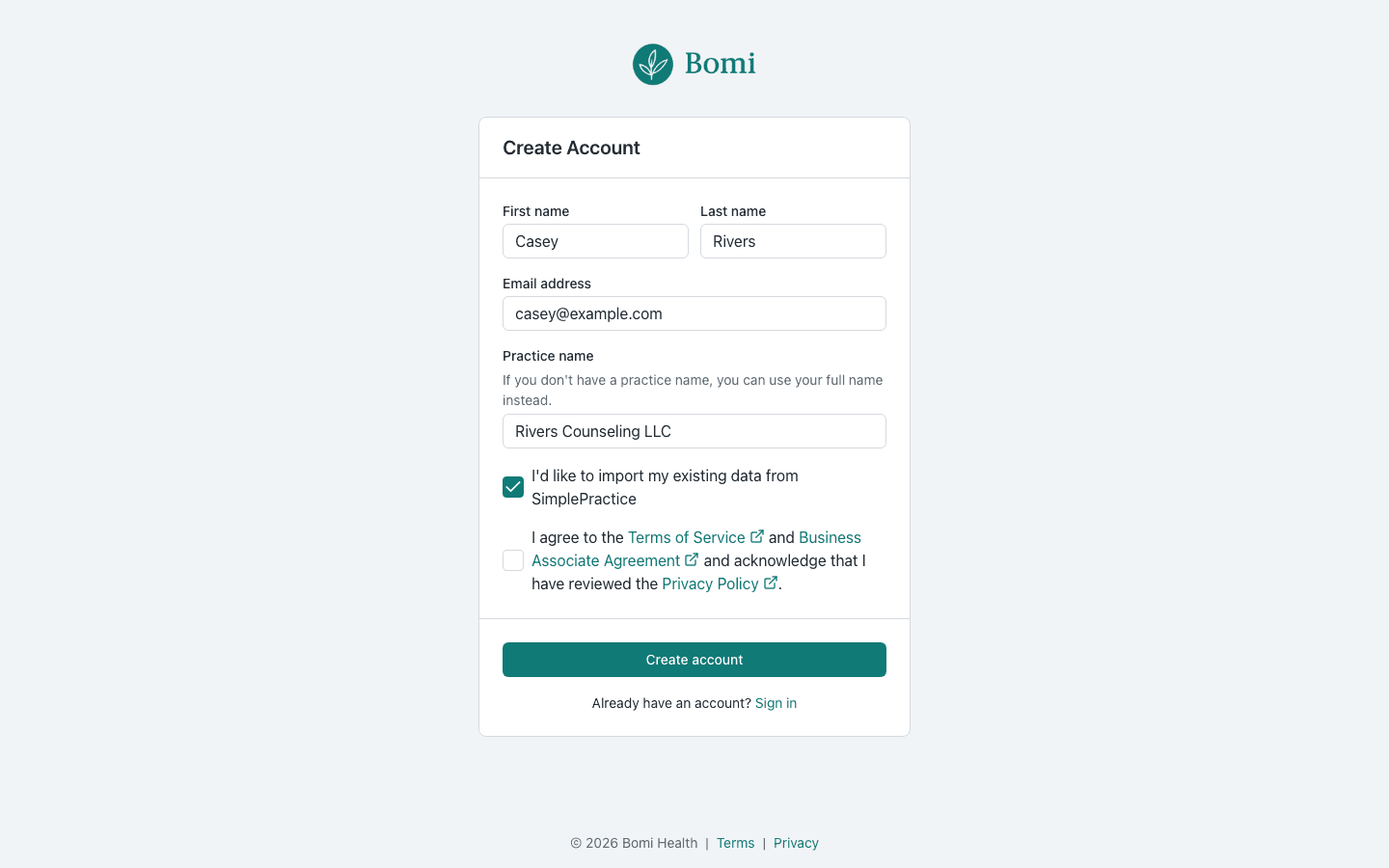
Demo practice, fictional data. - 2
Connect SimplePractice
Enter your SimplePractice email and password once. We store them encrypted and use them only to pull your data across. Turn off two-factor on SimplePractice while the sync runs.
The sync runs on weekdays until you activate, so anything you add in SimplePractice in the meantime comes across too.
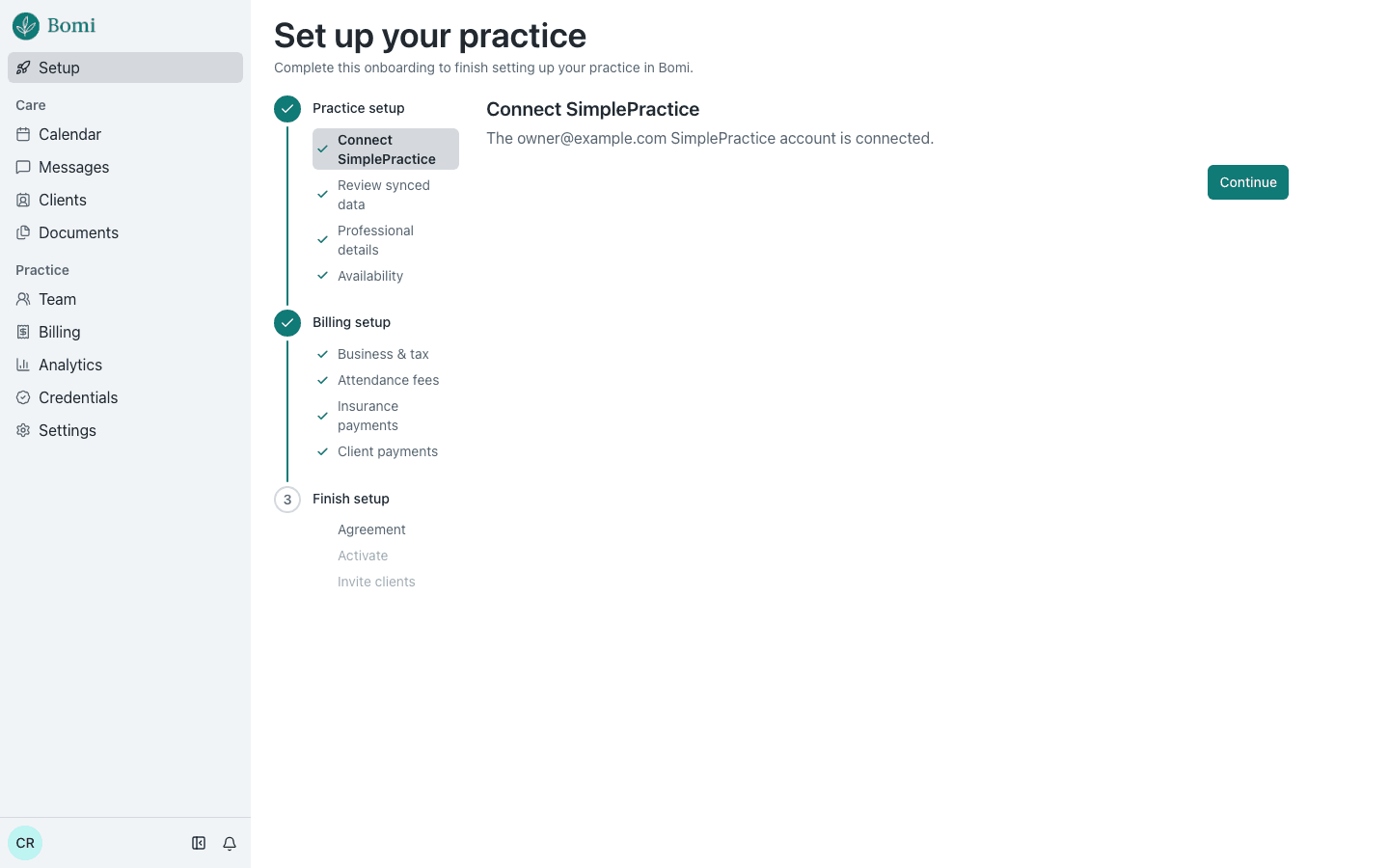
Demo practice, fictional data. - 3
Review what came over
Clients, calendar, documents, and billing each get a review link. Open them, spot-check, and come back. Nothing has changed in SimplePractice yet.
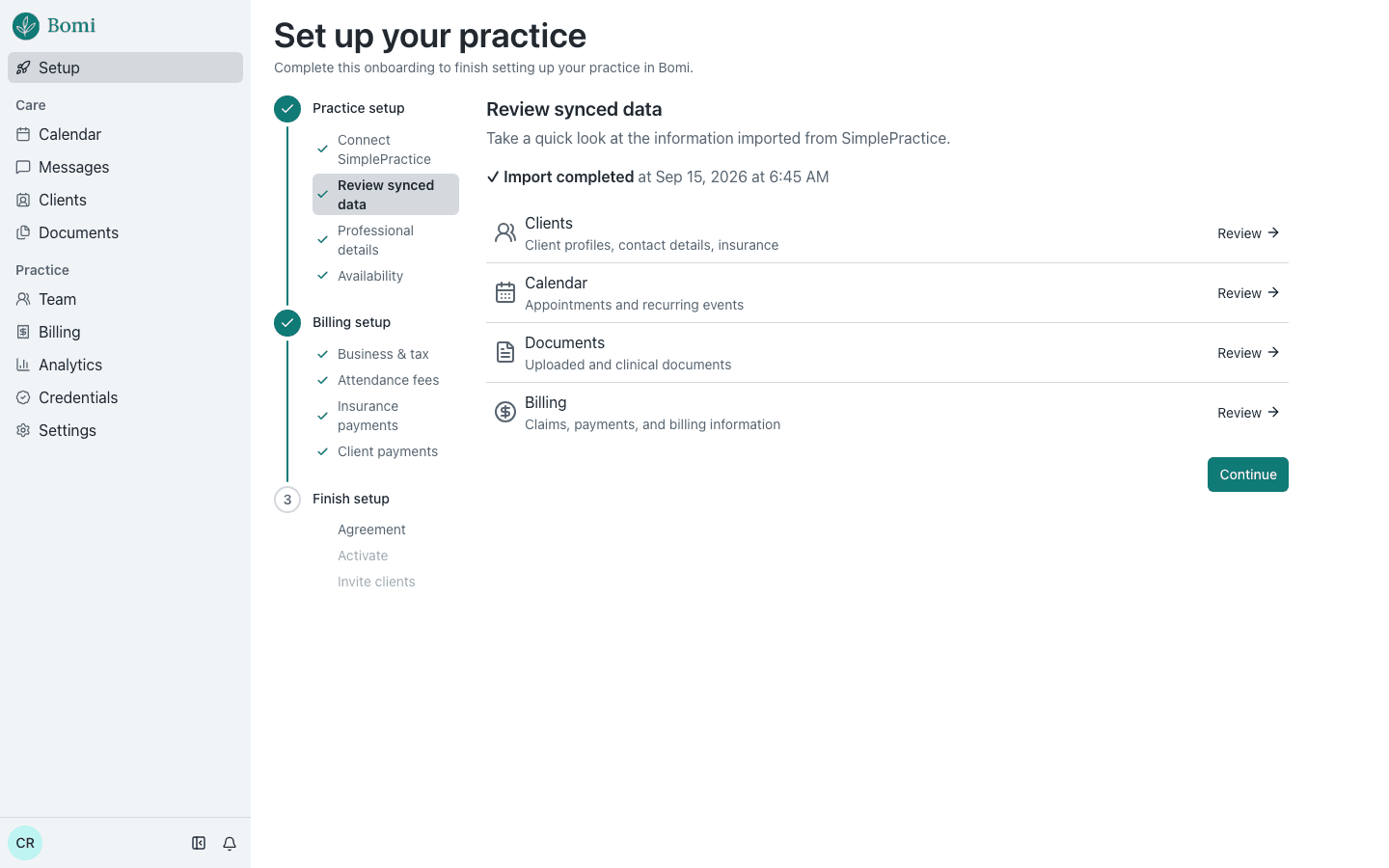
Demo practice, fictional data. - 4
Activate when you’re ready
Finish the rest of setup at your own pace. When you activate, future appointments move to Bomi and SimplePractice stops syncing. Historical and cancelled records stay as history.
Don’t cancel appointments in SimplePractice until after you activate.
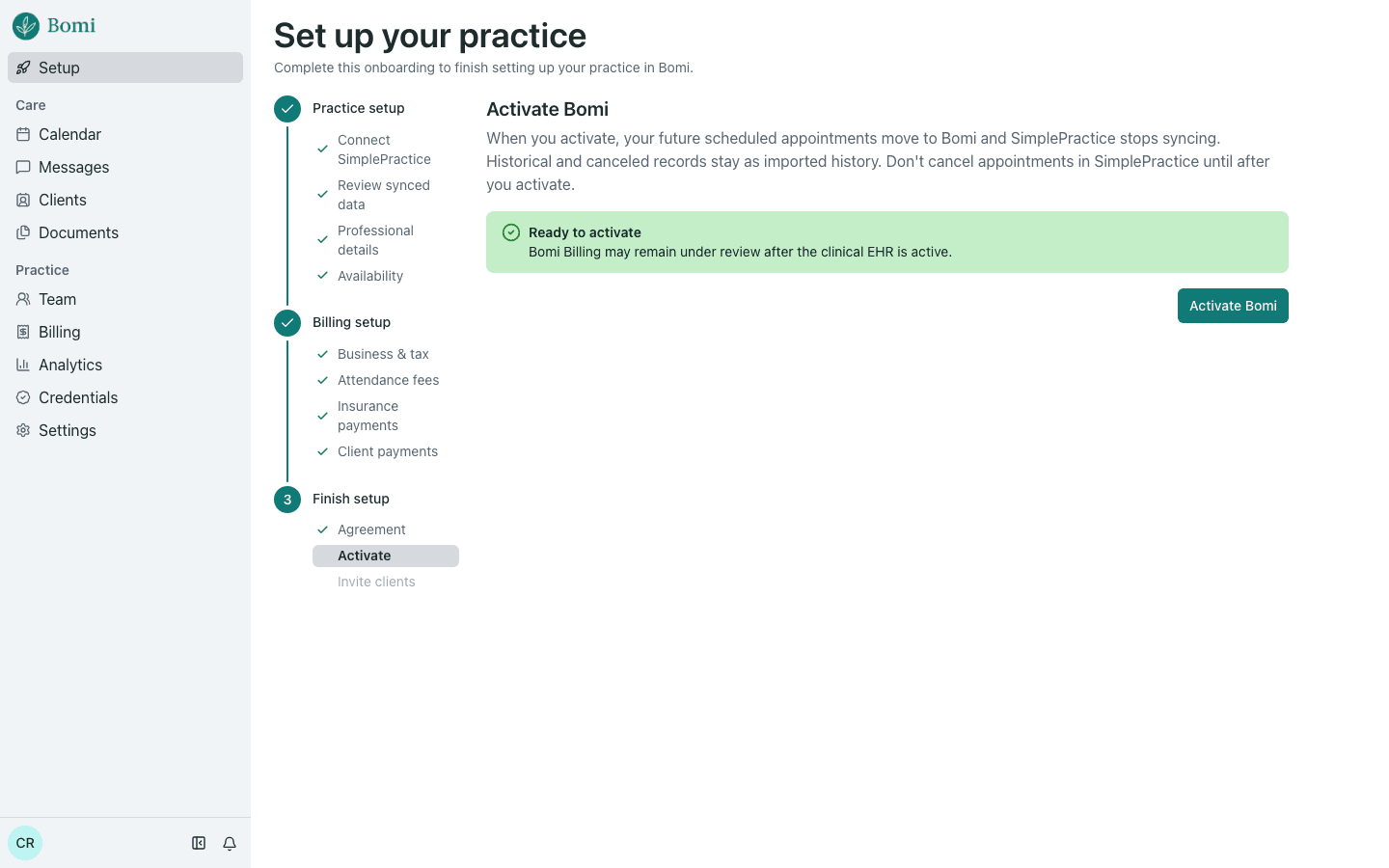
Demo practice, fictional data. - 5
Invite your clients
One message, the intake forms you want attached, and a recipient list to check before anything sends. Clients get a secure portal link; their appointments are already there.
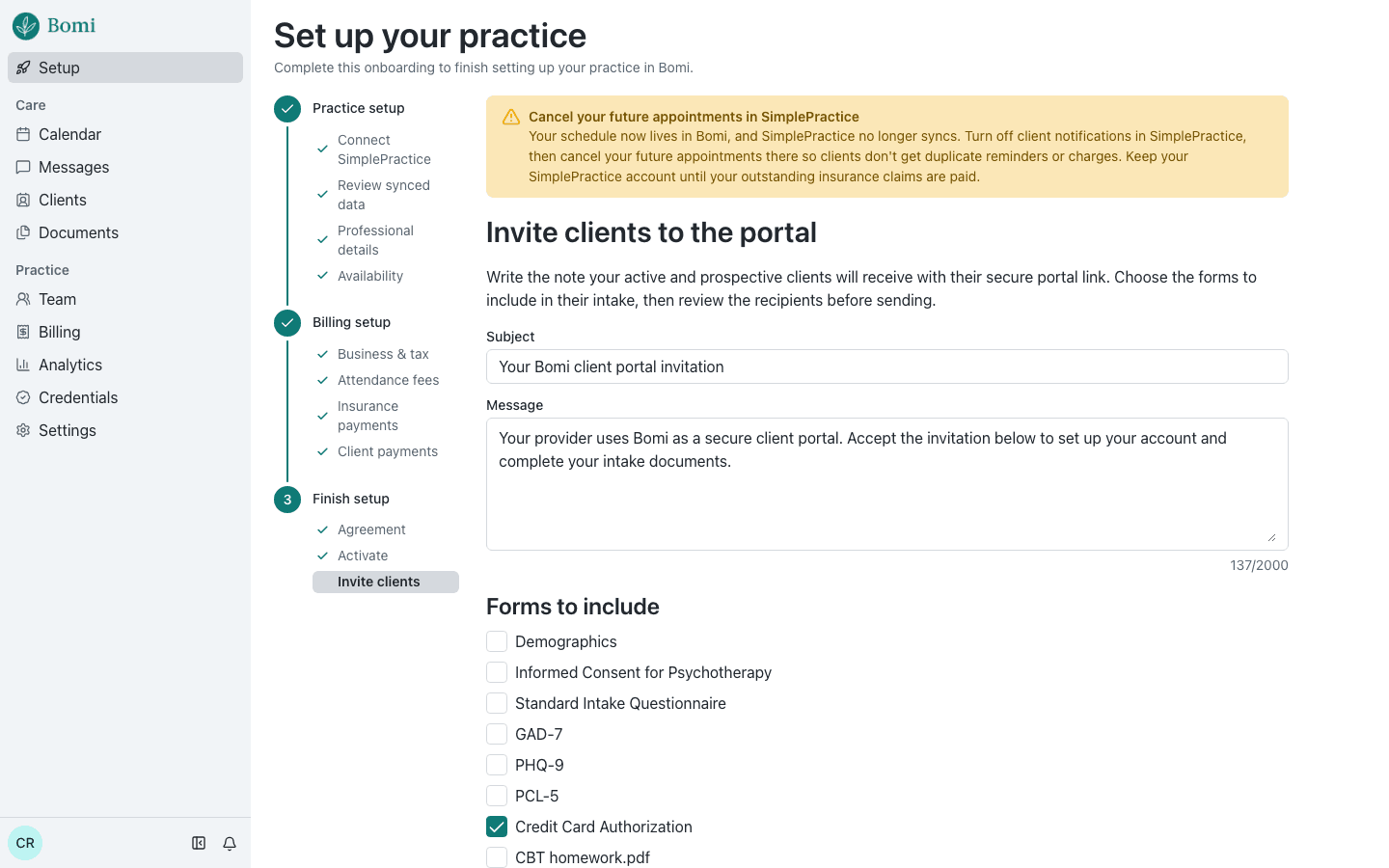
Demo practice, fictional data.
What comes across
Four things, each with a review link.
The sync keeps running on weekdays until you activate, so a client you add in SimplePractice on Tuesday is in Bomi by Wednesday.
Clients
Profiles, contact details, and insurance.
Calendar
Appointments and recurring events, including future ones.
Documents
Uploaded and clinical documents.
Billing
Claims, payments, and billing information.
After you activate
The same three reminders Bomi shows you on the invite step.
- Turn off client notifications in SimplePractice, then cancel your future appointments there so clients don’t get duplicate reminders or charges.
- Keep your SimplePractice account open until your outstanding insurance claims are paid.
- Everything else runs in Bomi from the day you activate.
Switching questions
What practices ask before they connect.
Tick the box. Keep seeing clients.
Activate when it looks right.
Nothing is charged at sign-up and nothing changes in SimplePractice until you activate. If you want a second pair of eyes on the review step, email us and we will look with you.
Questions first? Email contact@bomihealth.com.